
There’s a DailyMotion channel in the Roku Channel Store right now — and almost every guide online still doesn’t know it’s there. If you’ve been searching for ways to watch Dailymotion on Roku and kept running into dead ends, this guide covers what’s actually working in 2026. Five methods total, starting with the one most people skip.
Does Dailymotion Have an Official Roku App?
What’s in the Roku Channel Store Right Now
A channel called “DailyMotion” is live in the Roku Channel Store (bundle ID 803849). The listing describes it as a video discovery platform with trending clips, news, sports, and entertainment. Whether it’s a fully official Dailymotion release or a third-party channel built around the platform, it’s installable, it works, and it’s free.
Most guides you’ll find online are still telling users there’s no Dailymotion app for Roku. That information is outdated. Check the Channel Store yourself — it’s there.
What Happened to the Old Private Channel Code
Dailymotion once had a secret private channel on Roku. Users accessed it by manually entering the code “Dailymotion” on the Roku website. That channel was discontinued in 2022. After it disappeared, screen mirroring became the only option people talked about. That’s no longer the full picture.
What You Need Before You Start
Every method in this guide requires:
- A Roku device running a recent firmware version (Roku OS 11 or later recommended)
- A stable Wi-Fi connection (5GHz band preferred if you’re using mirroring or casting)
- The Dailymotion app on your phone, or a browser on your laptop with access to dailymotion.com
- “The Roku Streaming Stick 4K is the most popular pick for streaming apps and supports all the methods in this guide, including AirPlay.”
You can also browse every channel currently available on Roku to find other free content worth adding while you’re setting things up.
Method 1 — Add the DailyMotion Channel from Roku Channel Store
This is the fastest route and the one most people miss because they assume the app doesn’t exist.
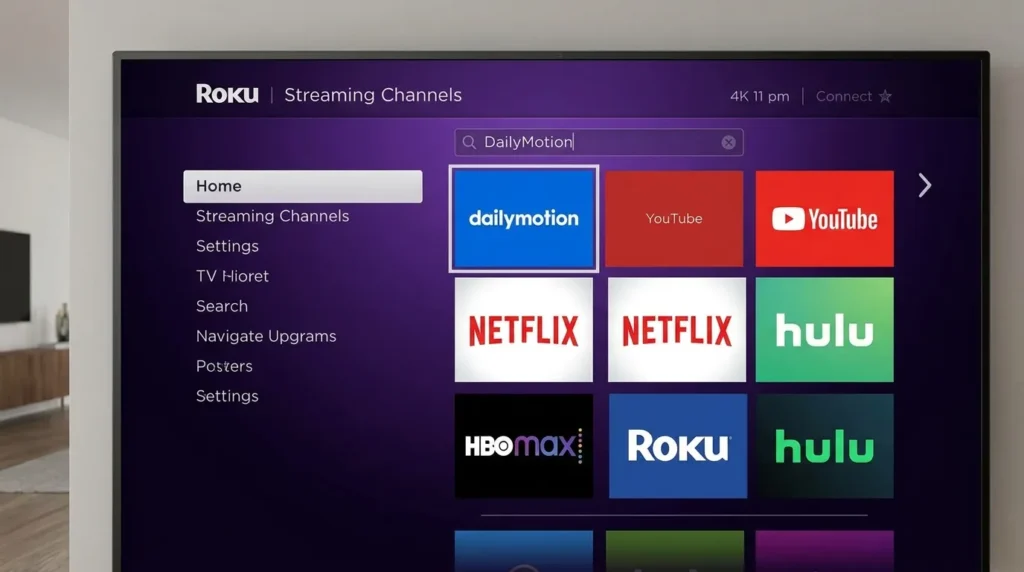
How to Install It
- On your Roku home screen, select Streaming Channels from the left sidebar
- Go to Search Channels and type DailyMotion
- Select the channel from the results and click Add Channel
- Once installed, the channel appears on your home screen
If the search returns nothing, go to channelstore.roku.com on your phone or computer, sign into your Roku account, search for DailyMotion, and add it there. Your Roku device will sync it within a few minutes.
What to Expect
The channel opens a browsable video feed — trending clips, sports highlights, news, and entertainment. Your Roku remote handles all navigation. No phone mirroring needed. This is the cleanest way to use Dailymotion on your TV.
Method 2 — AirPlay from iPhone or Mac
For Apple users, AirPlay is the most stable wireless option. No extra apps required.
Compatible Roku Models and Requirements
AirPlay 2 is built into most Roku devices released from 2019 onward, including:
- Roku Streaming Stick 4K and 4K+
- Roku Ultra (2019 and later)
- Roku Express 4K and 4K+
- Roku Smart Soundbar and Streambar Pro
- Most Roku-powered TCL, Hisense, and Sharp TVs
Your iPhone needs iOS 12.3 or later. Your Mac needs macOS Mojave 10.14.5 or later.
To check your Roku’s software version, go to Settings > System > About.
For a full breakdown of which TV models support AirPlay 2 natively, this AirPlay 2 supported TVs list covers every confirmed device.
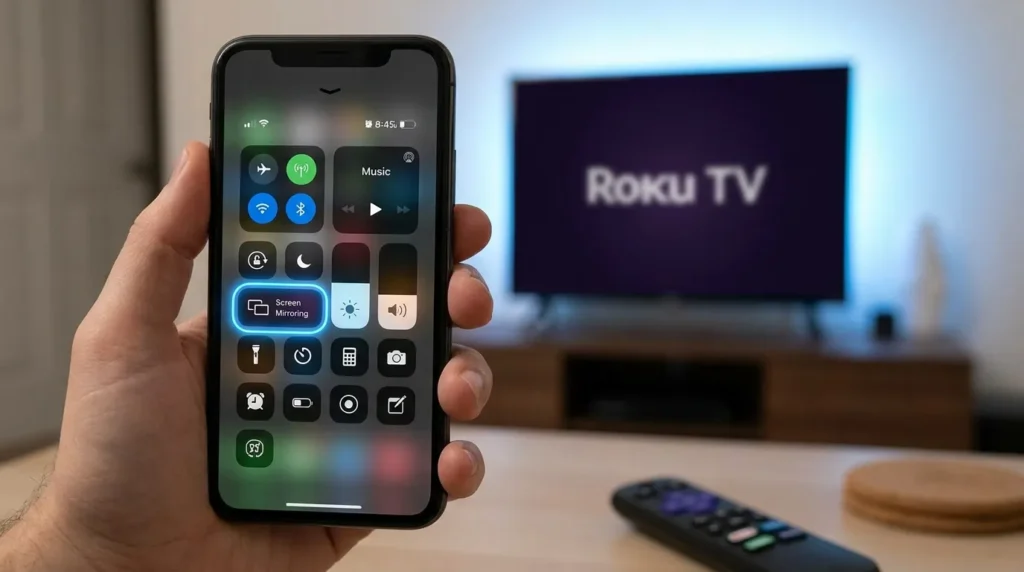
Steps for iPhone
- Download the Dailymotion app from the App Store if you haven’t already
- Connect your iPhone and Roku to the same Wi-Fi network
- Swipe down to open Control Center
- Tap Screen Mirroring
- Select your Roku device from the list
- Enter the 4-digit code shown on your TV
- Open Dailymotion — it plays on your TV instantly
To keep your Roku responsive even when the TV is in standby, enable Fast TV Start under Settings > System > Power.
Steps for Mac
- Open dailymotion.com in Safari or Chrome
- Click the AirPlay icon in the Mac menu bar (or go to Control Center > Screen Mirroring on macOS Monterey and later)
- Select your Roku device
- Dailymotion plays fullscreen on your TV
Method 3 — Screen Mirror from Android
Most Android phones running Android 10 or later support Miracast-based screen mirroring to Roku. It works well — with one important exception.
Which Android Phones Work (and Which Don’t)
Roku supports Miracast and AirPlay 2 for wireless mirroring. It does not support Chromecast.
Google Pixel phones will not mirror to Roku wirelessly. Pixel devices use the Chromecast protocol by default, which Roku doesn’t accept. Samsung, OnePlus, Xiaomi, Motorola, and most other Android brands use Miracast and connect without issues.
The mirroring feature goes by different names depending on the manufacturer:
- Samsung: Smart View
- LG: Screen Share
- Xiaomi: Wireless Display
- OnePlus: Screen Cast
- Others: Cast, Mirror, or Wireless Display
Step-by-Step
- On your Roku, go to Settings > System > Screen Mirroring > Screen Mirroring Mode and set it to Prompt or Always Allow — if it’s set to Never, nothing will connect
- On your Android phone, pull down the notification bar and find your device’s casting or mirroring option
- Tap it and wait a few seconds for your Roku to appear on the list
- Select your Roku — if a permission prompt appears on the TV, accept it
- Open the Dailymotion app on your phone
- Your phone screen mirrors to the TV, including everything in the Dailymotion app
Keep your phone unlocked while watching. Locking the screen pauses the mirror on most devices.
Method 4 — Cast from Windows PC
Windows has two casting options built in. Both work with Roku.
Option A: Miracast
- Open Roku settings and confirm Screen Mirroring is not set to Never
- On your Windows 10 or 11 PC, press Windows + K
- A panel slides in from the right, listing wireless display devices on your network
- Click your Roku
- Accept the connection prompt on your TV screen
- Open dailymotion.com in any browser and start watching
If you use dual monitors, Windows + K may not appear right away. Press Windows + P instead, choose More Display Settings, then scroll to Connect to a wireless display.
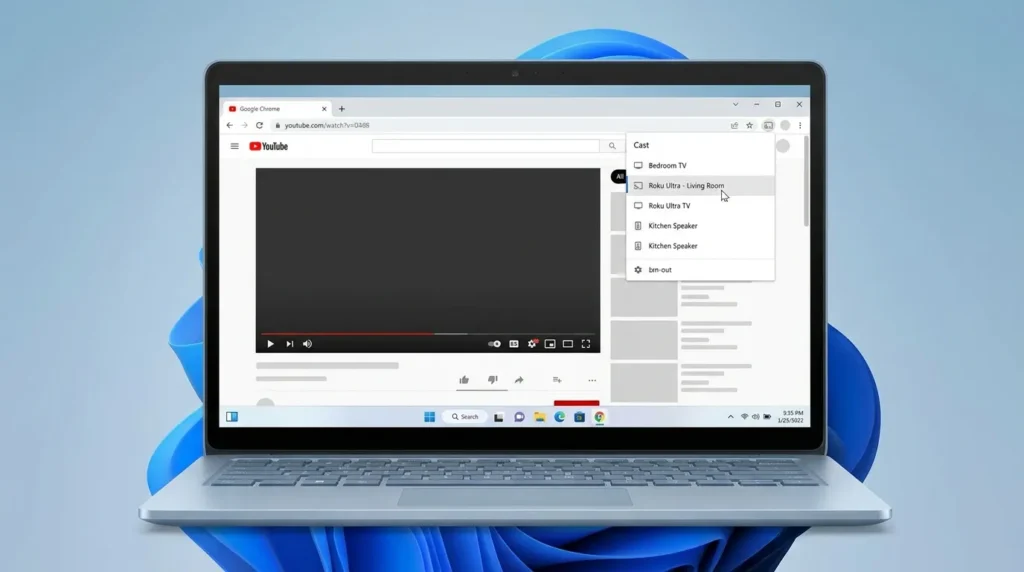
Option B: Chrome Browser Cast
This method works on Windows, Mac, and any device running Chrome.
- Open Google Chrome and go to dailymotion.com
- Click the three-dot menu in the top-right corner
- Select Cast…
- Choose your Roku from the list
Chrome casting works reliably but can introduce a small lip-sync delay on some setups. If timing between audio and video matters, use Miracast instead.
Method 5 — Third-Party Casting Apps
If none of the built-in methods are working for your device combination, two apps cover the edge cases.
AirBeamTV
AirBeamTV is available for iPhone and Mac. It mirrors your screen to Roku without needing native AirPlay 2 support, making it useful for older Roku models. The free version has a session time limit. The paid version is a one-time purchase with no recurring fee.
DoCast
DoCast is designed specifically for iPhone users. It’s more stable than AirBeamTV on older Roku hardware and includes a built-in browser that can open Dailymotion directly. Worth trying if AirPlay keeps dropping or refusing to connect.
Neither app requires your Roku to support AirPlay 2, which makes both solid options if you’re working with hardware from 2018 or earlier.
Which Method Is Best? (Quick Comparison)
| Method | Best For | Setup Time | Quality | Notes |
|---|---|---|---|---|
| Channel Store Install | Everyone | Under 2 min | Native streaming | No phone needed |
| AirPlay (iPhone/Mac) | Apple users | 2–3 min | HD, stable | Requires AirPlay-compatible Roku |
| Android Screen Mirror | Most Android phones | 2–3 min | HD | Pixel phones not supported |
| Miracast (Windows) | PC users | 2 min | HD | Built-in, no extra software |
| Chrome Browser Cast | Any Chrome device | 1 min | Good | Minor audio delay possible |
| Third-Party Apps | Older or unsupported devices | 5 min | Varies | Paid apps, last resort |
Start with Method 1. If the channel store app loads and works on your Roku, that’s the end of the process. Move down the list only if you hit a problem.
Troubleshooting Dailymotion on Roku
Screen Mirroring Not Showing Up
Check your Roku mirroring setting first. Go to Settings > System > Screen Mirroring > Screen Mirroring Mode. If it’s set to Never, your phone won’t find the Roku at all. Switch it to Prompt or Always Allow.
Also confirm both devices are on the same Wi-Fi network. A phone on 5GHz and a Roku on 2.4GHz will sometimes fail to detect each other. Switch them to the same band.
If the Roku app itself isn’t seeing your device, this guide on fixing the Roku app not finding your device walks through each specific cause.
AirPlay Won’t Connect
First, verify your Roku supports AirPlay 2. Go to Settings — if you don’t see an Apple AirPlay and HomeKit option in the menu, your device doesn’t have it.
If the option is there but it still won’t connect, restart both your Roku and your iPhone. A soft reset after a firmware update fixes most AirPlay connection failures.
Video Lags or Stutters
Switch to the 5GHz band on your router if you haven’t already. Move your phone closer to the Wi-Fi source during playback. Close background apps on your phone before starting the mirror — they steal processing power and cause frame drops.
If you’re also noticing picture quality issues beyond buffering — dark visuals or inconsistent brightness — check out this TV dark screen fix guide for display-level adjustments.
FAQs
Can I download Dailymotion directly on Roku? Yes. A DailyMotion channel is currently in the Roku Channel Store. Search “DailyMotion” under Streaming Channels and install it for free.
Does Dailymotion on Roku support 4K? The content quality depends on what’s uploaded to Dailymotion. Most videos top out at 1080p. True 4K is rare on the platform regardless of which method you use.
Is Dailymotion free on Roku? Yes. Dailymotion is free with no subscription. Some videos include short ads, the same as on mobile and desktop.
Will Dailymotion release a fully dedicated Roku app? There’s no public announcement about a native official app. The current Channel Store listing is the closest presence Dailymotion has on the platform right now.
What are good Dailymotion alternatives on Roku? YouTube, Vimeo, and Pluto TV are all available as native Roku channels with no setup workarounds. To find other free channels available on your specific device, the free streaming channel finder tool can show you what’s out there.
Wrapping Up
Watching Dailymotion on Roku is easier than most guides make it sound — especially now that a channel is sitting right in the Roku store. Start there. If it works, you’re done in two minutes. If not, AirPlay handles Apple devices cleanly, Miracast covers Windows and most Android phones, and Chrome casting works on anything with a browser.
If you want to keep expanding what your Roku can do, take a look at how to watch Streameast on Roku for live sports options, or check out how to install IPTV on Roku to unlock a much larger library of channels.