
Filmmaker Mode is a built-in picture setting on LG TVs that disables all automatic image processing so you see content exactly as the creator intended. You can turn it on or off in under 30 seconds. The only requirement: your LG TV must be a 4K or 8K model running webOS 5.0 or later.
This guide covers manual activation, the Auto Start option, stopping Amazon Prime from triggering it automatically, and what to do if the option is greyed out.
What Filmmaker Mode Actually Does
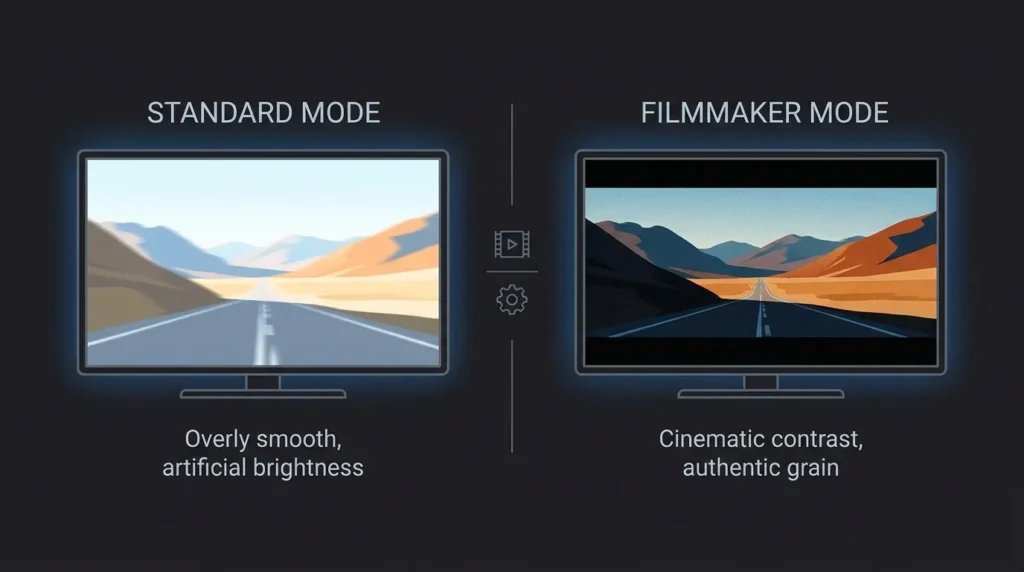
Most TVs apply several layers of processing to incoming video: motion smoothing, sharpness filters, noise reduction, edge enhancement, and colour correction. These features can improve the look of sports or news broadcasts, but they alter how movies were intended to look.
Filmmaker Mode disables all of the following automatically:
- TruMotion (motion smoothing) — removes the “soap opera effect” on 24fps films
- Edge enhancement — stops artificial sharpening of outlines
- Noise reduction — preserves natural film grain instead of smoothing it out
- Colour correction — shows the original colour grade from the mastering suite
- Aspect ratio adjustments — locks the original cinematic ratio, no cropping
The result is a picture that matches what the director saw when they approved the final cut.
One important limitation: Filmmaker Mode does not work with Dolby Vision content. It supports SDR and HDR10 only. If you watch a lot of Dolby Vision titles, Filmmaker Mode will not be available for those.
Which LG TVs Support Filmmaker Mode
| Model Year | webOS Version | Filmmaker Mode | Auto-Switching |
|---|---|---|---|
| 2019 and earlier | webOS 4.x or older | ✗ No | ✗ No |
| 2020 | webOS 5.0 | ✓ Yes | ✓ Yes (via update) |
| 2021 | webOS 6.0 | ✓ Yes | ✓ Yes |
| 2022–2024 | webOS 22–24 | ✓ Yes | ✓ Yes |
| 2025 | webOS 25 | ✓ Yes | ✓ Yes |
Not sure which webOS version your TV runs? Press the Mute button three times quickly — a system info overlay will appear showing your webOS version and model number. You can also use the TV Model Number Decoder to confirm your LG TV’s spec tier from the model string on the back label.
If your TV is a 2019 or older model, Filmmaker Mode is not available. LG confirmed it can be added via firmware to some older units, but only select models have received it. Make sure you’re running the latest webOS update for LG TVs before concluding the feature isn’t there.
How to Turn On Filmmaker Mode Manually
This is the simplest path — manually set your picture mode to Filmmaker Mode. It stays on until you change it.
On webOS 5.0 and Later (2020–Present)
- Press the Settings button (gear icon) on your remote.
- Select All Settings (the three-dot icon at the bottom of the quick menu).
- Go to Picture → Picture Mode Settings → Picture Mode.
- Scroll to Filmmaker Mode and select it.
Your TV immediately applies the mode. No restart needed.
If your LG Magic Remote is unresponsive during these steps, check out this guide on fixing an LG Magic Remote that’s not working before continuing.
On Older LG Smart TVs (Pre-2020, Some 2020 Models)
Some earlier menus have a slightly different path:
- Press Settings on your remote.
- Select Picture → Picture Mode.
- Choose Filmmaker Mode from the list.
If you don’t see Filmmaker Mode in the list at all, your model likely doesn’t support it.

How to Enable Filmmaker Mode Auto Start
Auto Start tells your TV to prompt you whenever it detects content that supports Filmmaker Mode. Currently, this works with select movies and shows on Amazon Prime Video — these titles have Filmmaker Mode metadata embedded in their stream signal.
When you play supported content, a pop-up appears asking if you want to switch. You can confirm or dismiss it. If you confirm, Filmmaker Mode activates. If you dismiss, nothing changes.
Steps to enable Auto Start:
- Press Settings → All Settings.
- Go to Picture → Advanced Settings.
- Find FILMMAKER MODE Auto Start and toggle it On.
- Exit settings and play content on Amazon Prime Video.
This feature was introduced in October 2021 as an industry first, developed jointly by LG and Amazon. Note that the TV returns to your previous picture mode once playback ends.
How to Turn Off Filmmaker Mode
There are three separate ways to disable it, depending on what you’re trying to stop.
1. Switch Picture Mode Manually
The quickest method. Just change to a different picture mode:
- Press Settings → All Settings → Picture → Picture Mode Settings → Picture Mode.
- Select Standard, Cinema, or any other mode.
Filmmaker Mode is off immediately.
2. Turn Off Auto Start
This stops your TV from suggesting Filmmaker Mode when supported content plays:
- Press Settings → All Settings.
- Go to Picture → Advanced Settings.
- Toggle FILMMAKER MODE Auto Start to Off.
3. Stop Amazon Prime from Triggering It Automatically (Auto Change)
This is the setting most people are actually looking for. If Amazon Prime Video has been switching your picture mode without warning, this is why — and this is the fix.
FILMMAKER MODE Auto Change is a separate setting from Auto Start. It allows the streaming signal itself to force-switch your picture mode without a pop-up. Disabling it gives you control back:
- Press Settings → All Settings.
- Go to Picture → Advanced Settings.
- Find FILMMAKER MODE Auto Change and set it to Off.
After this change, Amazon Prime Video can no longer override your picture settings automatically.
Filmmaker Mode Is Greyed Out — Causes and Fixes
If Filmmaker Mode appears in the menu but is unselectable, one of three things is usually happening:
Cause 1: Game Mode is active When Game Mode or Game Optimizer is on, LG locks several picture settings to reduce input lag. Filmmaker Mode becomes inaccessible. Fix: Go to Picture Mode and switch from Game Mode to any other mode first.
Cause 2: Energy Saving is enabled LG’s Energy Saving setting controls the backlight automatically and locks related picture controls. Fix: Go to Settings → Support → Energy Saving and set it to Off.
Cause 3: Store/Retail Mode If the TV was set up in Store Mode, it periodically resets settings and locks certain options. Fix: Go to Settings → All Settings → General → System → Location and make sure it’s set to Home Mode, not Store Mode.
If none of those apply, restart the TV from the settings menu (not just the remote power button) and try again.
If you’re also noticing an unexpectedly dark picture alongside this issue, the guide to fixing a dark TV screen covers several overlapping causes.
Filmmaker Mode vs. Cinema Mode — Which Should You Use?
Both modes aim for accurate picture, but they work differently.
Cinema Mode applies LG’s own colour calibration profile — it’s close to accurate but still involves some processing. It’s tuned for a warm, pleasing look. Cinema Home is a slightly brighter version of the same idea.
Filmmaker Mode is a standardised specification defined by the UHD Alliance. It disables all processing without substituting anything else. The output is determined entirely by the source material.
For movie watching on a calibrated OLED panel, Filmmaker Mode is the better choice because nothing is added or adjusted. Cinema Mode is useful on LCD panels where the extra calibration compensates for the display’s natural limitations.
For sports, gaming, or general TV viewing, neither is ideal — Standard or Game Mode will serve better.
Not sure which picture mode fits your viewing habits? The TV Picture Mode Optimizer tool can help you find the right setting based on your content and room setup. And since room lighting affects how accurate any picture mode looks, it’s worth checking the Room Lighting vs TV Type Advisor if you watch movies in a brightly lit room.
Worth knowing: LG recently updated how Filmmaker Mode responds to ambient light. Read about how Filmmaker Mode now adjusts for room lighting conditions on newer LG models.

Frequently Asked Questions
Does Filmmaker Mode work with Dolby Vision content? No. Filmmaker Mode is compatible with SDR and HDR10 only. Dolby Vision content uses its own metadata pipeline that overrides picture mode settings. You cannot use Filmmaker Mode and Dolby Vision at the same time.
Does Filmmaker Mode make the picture darker? It can appear darker compared to Standard or Vivid modes, because those modes artificially boost brightness. Filmmaker Mode shows the original mastered brightness level. If a film is intentionally dark — like many modern thrillers — it will look dark. That’s correct. If overall brightness is an issue, learn how to adjust brightness on your LG TV without leaving Filmmaker Mode.
Does it stay on after I turn off the TV? Yes. Your picture mode setting persists through power cycles. If you manually set Filmmaker Mode, it stays on until you change it.
Does Filmmaker Mode affect sound? No. It only changes picture processing. Audio settings are unaffected.
Will Filmmaker Mode work on all inputs? It works on HDMI inputs and streaming apps. Performance varies slightly by input type and source content quality.