
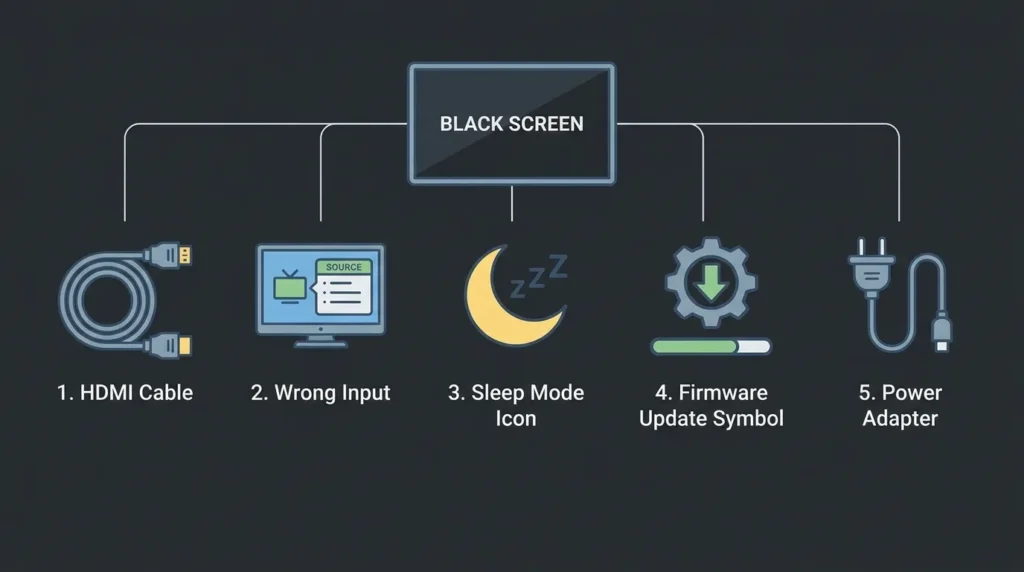
The fastest fix for a Fire TV black screen is to unplug both the Fire TV device and the TV from power, wait 60 seconds, and plug them back in. This clears temporary software faults that cause the screen to go black. If that doesn’t work, the cause is almost always one of five things — HDMI connection failure, wrong input source, sleep settings, a firmware bug, or a failing power adapter. Every one of those has a straightforward fix.
This guide breaks fixes down by symptom so you can skip straight to what matches your situation.
Why Does Fire TV Show a Black Screen?
Before jumping into fixes, it helps to know what’s actually causing it. Fire TV black screens fall into a few clear categories:
HDMI connection failure is the most common cause. A loose cable, a damaged port, or an HDCP handshake failure between the Fire TV and your TV can cut the picture entirely while audio sometimes continues.
Wrong input source is the second most common — and the easiest to overlook. Your TV is on but pointed at the wrong HDMI input.
Sleep mode or screensaver activation makes the screen go black without any hardware problem at all. Pressing any button on the remote usually confirms this within seconds.
Firmware bugs have caused black screen issues on multiple Fire OS versions. Amazon’s 2024–2025 Fire OS updates introduced screen rendering problems on certain TV panel types.
Overheating causes the Fire TV processor to throttle or shut down video output. This usually happens after several hours of continuous use.
Power adapter issues starve the device of stable voltage, causing it to boot into a black screen state or crash mid-use.
Quick Fixes to Try First
Start here. These solve the black screen in the majority of cases within two minutes.
1. Force restart your Fire TV
Hold the Select button and the Play/Pause button simultaneously for 5 seconds. The Fire TV restarts. If the screen was black due to a software crash or freeze, it comes back on after the restart completes (30–45 seconds).
2. Unplug and power cycle both devices
- Unplug the Fire TV’s USB power cable
- Unplug your TV from the wall
- Wait a full 60 seconds
- Plug the TV back in first, then the Fire TV
This forces a complete HDCP handshake reset between both devices.
3. Check and reseat the HDMI cable
Pull the Fire TV Stick out of the HDMI port, inspect the connector for bent pins or debris, then push it firmly back in. If you’re using an HDMI extender cable, remove it and plug directly into the port.
4. Switch to a different HDMI port
HDMI ports fail individually. Try HDMI 1 if you were using HDMI 2, or vice versa. Avoid the ARC/eARC port — it behaves differently and can conflict with Fire TV’s signal.
5. Confirm the correct TV input source
Press the Input or Source button on your TV remote and cycle through inputs until you land on the one your Fire TV is connected to. If you’re unsure which port you used, check the back or side of the TV physically.
If none of these work, move to the symptom-specific fixes below. You can also use the TV HDMI Port Selector tool to identify which port configuration works best for your TV model.
Fix: Fire TV Black Screen With Sound
If you can hear audio but see no picture, the problem is almost always HDMI signal transmission — not a dead device.
Step 1: Try a different HDMI cable. The existing cable may be damaged internally while still carrying audio signals (audio requires less bandwidth than video).
Step 2: Disable Dolby Atmos temporarily. Go to Settings → Display & Sounds → Audio → Dolby Atmos and turn it off. Some TV and soundbar combinations create a handshake conflict that kills video output.
Step 3: Change the HDMI signal format. On some Fire TV models, go to Settings → Display & Sounds → Display → Video Resolution and drop it from 4K to 1080p. Certain older TVs can’t handle 4K HDR signal and display nothing rather than downscaling.
Fix: Fire TV Black Screen on Startup
A black screen specifically on startup — where the Fire TV LED light is on but the TV shows nothing — usually means one of two things: a resolution mismatch or a failed boot sequence.
Power cycle sequence (exact order matters):
- Unplug the TV
- Unplug the Fire TV power adapter
- Wait 2 minutes
- Plug in the TV first
- Wait for the TV to fully boot
- Then plug in the Fire TV
The order matters because the TV needs to establish its signal profile before the Fire TV sends a video handshake.
Reset display settings via blind navigation (when screen stays black):
If the screen is black but the Fire TV is running, you can navigate by memory:
- Press Home on the remote
- Press Right three times → you’re on Settings
- Press Select
- Press Down twice → Display & Sounds
- Press Select
- Press Select again → Display
- Press Down once → Video Resolution
- Press Select and choose 1080p using the arrow keys
This blind navigation method also works if you’ve accidentally set a resolution your TV can’t display.
For more detailed guidance on navigating Fire TV without a visible screen, see how to use Amazon Fire TV without remote.
Fix: Fire TV Black Screen After Sleep or Screensaver
This is one of the most common and least understood causes. Fire TV enters a screensaver or sleep state and either can’t wake properly or outputs a black frame instead of resuming video.
Disable the screensaver: Settings → Display & Sounds → Screensaver → set to Never
Adjust the sleep timer: Settings → Display & Sounds → Display → Sleep → set to a longer interval or Never
Wake the device properly: Press the Home button (not just any button) after a black screen appears post-sleep. The Home button triggers a full UI reload rather than just a display wake signal.
If your Fire TV remote itself is causing issues — not responding or not waking the device — check out this guide on fixing Fire TV remote pairing problems.
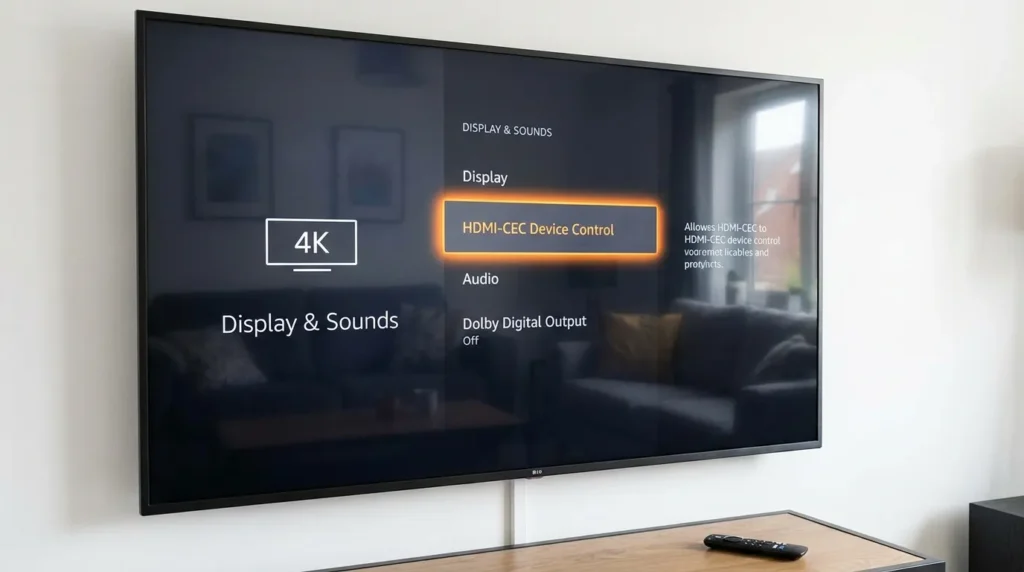
Fix: Black Screen Caused by HDMI-CEC
HDMI-CEC is a feature that lets your TV and Fire TV communicate device control signals through the HDMI cable — for example, automatically switching input when you start the Fire TV. It sounds useful but causes black screen problems on certain TV brands when both devices try to control each other’s power state.
How to disable HDMI-CEC on Fire TV: Settings → Equipment Control → Manage Equipment → TV → uncheck HDMI-CEC
Also disable CEC from your TV’s own settings menu. The label varies by brand — Samsung calls it Anynet+, LG calls it SimpLink, Sony calls it Bravia Sync. Check your TV’s input/device settings menu.
If you’re dealing with a TV that won’t respond to settings at all, our TV error code lookup tool can help identify whether there’s a deeper display error at play.
Fix: Fire TV Black Screen After an Update
Fire OS updates occasionally push bugs that affect video output — particularly on Fire TV Stick 4K and Fire TV Cube devices. If your screen went black shortly after or during an update, this is likely the cause.
Step 1: Wait 10 minutes. Some post-update processes run in the background and can suppress display output temporarily.
Step 2: Force restart using the Select + Play/Pause combination (hold 5 seconds).
Step 3: If the screen is still black after two restarts, perform a factory reset. You’ll lose your app installations and login sessions, but the core issue clears in almost every case.
Fix: Intermittent or Blinking Black Screen
A screen that flashes black repeatedly — every few seconds or minutes — points to a power delivery problem rather than software.
Check the power adapter: Fire TV Stick 4K requires a 9W power adapter (5V/1.8A). Fire TV Cube requires 30W. Using a weaker USB charger, plugging into a TV’s USB port (which typically outputs only 0.5A), or using a third-party adapter causes voltage drops that produce exactly this symptom.
Use only the official Amazon power adapter that came with the device. If it’s lost or damaged, replace it with an Amazon-certified adapter that matches the exact wattage rating.
Check for overheating: If the Fire TV stick feels hot to the touch, unplug it for 30 minutes and ensure there’s airflow around the device. An HDMI extender cable (included in the box) keeps the stick away from heat generated by the TV panel.
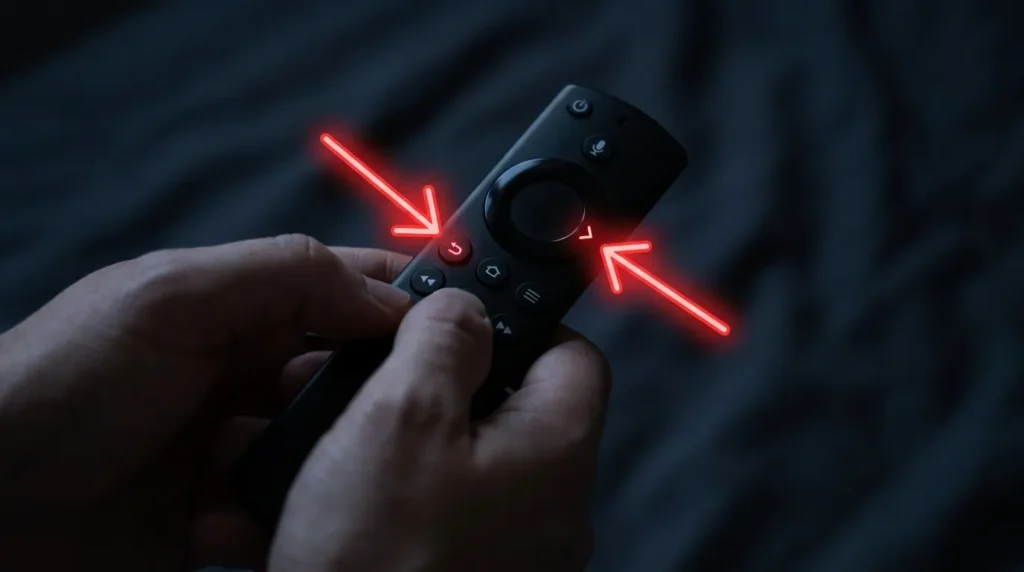
How to Factory Reset Fire TV When the Screen Is Black
If nothing has worked and the screen remains black, a factory reset performed blind is your last software-based option before contacting Amazon.
Fire TV Stick — Blind Reset (button combination):
- Press and hold the Back button and the Right directional button simultaneously
- Hold for 10 seconds
- Release — the device resets automatically
- Wait 3–5 minutes for the reset to complete and the setup screen to appear
Fire TV Cube — Blind Reset:
- Press and hold the Microphone button and the Volume Down button on the top of the Cube
- Hold for 15 seconds
- Release and wait for the reset to process
After the reset, the setup wizard should appear on screen. If the screen is still black after a factory reset, the issue is hardware — either a failed Fire TV device or a TV display panel problem.
For a full walkthrough of the reset process with screen access, see how to reset Amazon Fire TV Stick.
When to Contact Amazon Support or Replace Your Device
Reach out to Amazon Support if:
- The screen stays black after a factory reset
- The Fire TV LED doesn’t light up at all (no power)
- The device gets extremely hot immediately after plugging in
- You hear clicking or buzzing from the device
Fire TV Sticks typically last 3–5 years. If your device is older, has been through multiple firmware generations, and is regularly crashing — replacement is the more practical option over continued troubleshooting.
If the issue turns out to be with your TV rather than the Fire TV device — for example, a TV showing a black screen across all inputs — check this guide on fixing a TV with no picture or this one on fixing an Element TV black screen if you’re on that brand.
Also, if you notice the same black screen appearing on other TV inputs, the problem may be with the TV’s display panel rather than the Fire TV itself. Similar display issues occur on other brands — our guide on fixing LG TV black screen problems and fixing Samsung TV black screen issues cover panel-level diagnostics in detail.
Final Checklist Before Giving Up
Run through this before concluding the device is dead:
- ✅ Power cycled both TV and Fire TV (60-second full unplug)
- ✅ Tested a different HDMI port
- ✅ Confirmed the correct TV input source
- ✅ Tried a different HDMI cable
- ✅ Disabled HDMI-CEC on both Fire TV and TV
- ✅ Changed video resolution to 1080p via blind navigation
- ✅ Used the official Amazon power adapter
- ✅ Performed a factory reset via button combination
If all of these are checked off and the screen is still black — the hardware is failing. Contact Amazon at amazon.com/devicesupport or file a warranty claim if the device is under one year old.