
Roku doesn’t have a single button that blocks YouTube. There’s no parental toggle that says “block this app.” But there is a two-step method that actually works — and once it’s set up, your kids can’t get around it without your 4-digit PIN.
Here’s exactly what to do.
Why Roku Doesn’t Have a Direct YouTube Block
Roku’s parental controls are limited compared to platforms like Apple TV. You can restrict content ratings and purchases, but you can’t block individual apps directly from the device settings.
The workaround is straightforward: remove YouTube from the device, then lock the Channel Store so it can’t be reinstalled. Anyone who tries to add YouTube back will hit a PIN prompt they can’t bypass.
What Roku’s PIN System Actually Controls
This is worth understanding before you set it up. The Roku Channel Store PIN doesn’t block YouTube specifically. It requires a PIN for any new channel installation and for purchases. That’s actually useful — it means one PIN covers YouTube, YouTube Kids, or any other app someone might try to install as a workaround.
The PIN is tied to your Roku account, not the device. You set it from a web browser at my.roku.com, and it applies to every Roku device connected to that account.
What You Need Before You Start
- Your Roku remote
- A web browser (phone or laptop works fine)
- Access to your Roku account login at my.roku.com
- About 5 minutes
If you’re not sure which Roku model you have, the full Roku channels list covers every current device. These steps work on all of them — Roku Express, Roku Streaming Stick 4K, Roku Ultra, and Roku-powered TVs.
Step 1 — Remove YouTube from Your Roku Device
You need to uninstall YouTube first. As long as the app is already installed, the PIN doesn’t affect it.
Here’s how to remove it:
- Press the Home button on your Roku remote to go to the main screen.
- Use the arrow keys to highlight the YouTube channel tile.
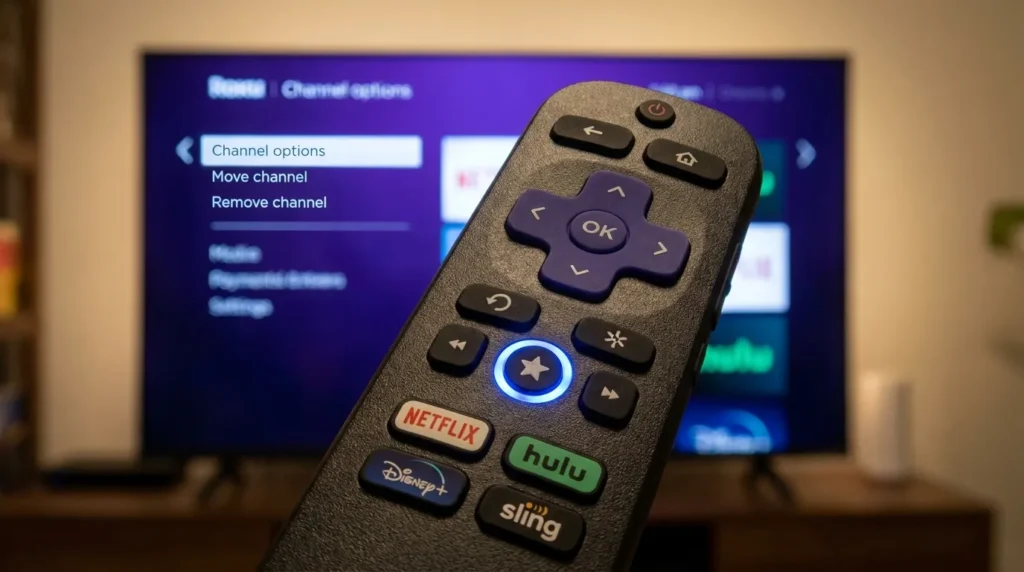
- Press the Star (★) button on your remote. This opens the channel options menu.
- Select Remove channel.
- Confirm by pressing OK on the “Are you sure?” prompt.
YouTube is now off your Roku. But without the PIN step below, anyone can go straight to the Channel Store and reinstall it in 30 seconds.
Step 2 — Add a Channel Store PIN to Your Roku Account
This step happens in a web browser, not on the TV. You’re locking the Channel Store at the account level.
How to Create Your PIN at my.roku.com
- Open a browser and go to my.roku.com. Sign in with your Roku account credentials.
- Under the PIN preference section, click Update.
- Select the option: “Require a PIN to make purchases and add channels.”
- Click Create PIN.
- Enter a 4-digit PIN. Choose something your kids won’t guess. Don’t use birthdays.
- Scroll down and click Save preferences.
- Go back to your Roku TV: Settings → System → System Restart → Restart.
Once the TV restarts, the PIN is active.
What the PIN Restricts (and What It Doesn’t)
The PIN blocks:
- Installing any new channel from the Channel Store
- Making purchases through the Roku store
The PIN does not block:
- Channels already installed on the device (which is why Step 1 matters)
- Content inside apps — it doesn’t filter videos within YouTube Kids, for example
- Browser-based access to YouTube if you have a Roku TV with a web browser
If your Roku TV has a built-in web browser and your child knows how to access it, the PIN won’t stop them from visiting youtube.com directly. For that level of control, you’ll need the router method below.
Step 3 — Test That the Block Is Working
Do this before walking away:
- On your Roku, open the Channel Store.
- Search for YouTube.
- Try to install it.
Roku will ask for your PIN. Enter it or leave it blank — if the PIN prompt appears, the block is working. If you enter the wrong PIN three times, Roku locks the store temporarily, which adds another layer of protection.
This is also a good time to verify that YouTube no longer appears on your home screen or in your channel list.
Advanced Method — Block YouTube at the Router Level
The Channel Store PIN is solid for most households. But if you want to stop YouTube entirely — including browser-based access and any workarounds — blocking it at the router level is more effective.
Using OpenDNS for Network-Wide Blocking
OpenDNS is a free DNS filtering service. It works at the network level, so it blocks YouTube on every device connected to your home Wi-Fi — Roku, phones, tablets, laptops, everything.
Setup overview:
- Log in to your router’s admin panel (usually at 192.168.1.1 or 192.168.0.1).
- Go to DNS settings and replace the existing DNS addresses with OpenDNS servers:
- 208.67.222.222
- 208.67.220.220
- Create a free account at opendns.com and register your home IP address.
- In the OpenDNS dashboard, go to Web Content Filtering and block the “Video Sharing” category or add youtube.com manually to the blocked domains list.
This blocks YouTube at the network level. It’s persistent, doesn’t require anything on the TV itself, and covers every device in your home.
Using Circle Parental Controls
Circle is a dedicated parental control device and app that manages screen time and content filtering across all home devices. It integrates directly with your router and lets you block specific websites — including YouTube — per device or per user profile.
If you manage multiple devices for multiple kids and want granular per-child controls, Circle is more practical than OpenDNS. You can also set daily time limits, which the Roku PIN method doesn’t offer.
Other Options to Consider
Switch to YouTube Kids Instead
If the goal is protecting young kids from inappropriate content rather than removing YouTube entirely, YouTube Kids is worth trying before you block the full app. It’s a separate Roku channel with curated content, no comments, no unrestricted search, and adjustable age settings (Preschool, Younger, Older).
You can find age-appropriate streaming options using the Kids Streaming Content Finder — it helps you filter content by age group and platform so you can set up something kids will actually enjoy watching.
YouTube Kids doesn’t replace a block if your kids are determined. But for younger children, it removes the temptation before it becomes a problem.
Set Content Ratings on Roku
Roku also lets you restrict content by rating. Go to Settings → Parental controls and set the maximum allowed rating (TV-Y, TV-G, PG, etc.). This won’t block YouTube the app, but it does block rated content in channels that respect Roku’s rating flags — including some streaming services.
For a broader look at controlling what’s available on your device, the Free Streaming Channel Finder lets you see which kid-safe channels are available on Roku at no cost.
If you’ve been running into other streaming issues, how to fix a YouTube TV black screen on Roku and general tips on blocking ads on your smart TV are worth bookmarking as well.
Frequently Asked Questions
Can my child bypass the Channel Store PIN? Not easily. The PIN is tied to your Roku account, not the device. They’d need to either know your PIN or log into a separate Roku account. If you want to prevent the second scenario, make sure your Roku account credentials aren’t stored visibly on a shared device.
Does the PIN block YouTube specifically or all channels? It blocks all channel installs, not just YouTube. This is actually an advantage — it means no alternative app can be installed as a workaround without your approval.
What if my child uses a different Roku account? If someone logs out of your Roku account and logs into a different one, your PIN won’t apply to that account. To close this gap, go to Settings → System → Advanced system settings → Factory reset protection, or use a screen lock PIN under Settings → System → Screen mirroring. The router-level blocking method eliminates this loophole entirely since it works regardless of which account is active.
Is there a way to block YouTube on Roku without deleting the app? No reliable method exists without deleting it first. The Channel Store PIN only prevents reinstallation — it doesn’t lock an already-installed app. Some users try hiding the YouTube tile from the home screen, but this doesn’t block the app, just makes it harder to find. Removing the app is the only way to actually block access on the device.
What if I need to turn the TV on without the remote? If your remote stops working during setup, check out how to turn on your Roku TV without a remote or power button — it walks you through using the Roku mobile app as a temporary replacement.