
The fastest way to connect your laptop to an LG TV is with an HDMI cable. Plug one end into your laptop, the other into an HDMI port on your LG TV, press the Input button on your remote, and select the matching HDMI source. Your screen appears within 5 seconds.
That’s the short version. But there are a few things that trip people up — no HDMI port on the laptop, wrong input selected, no sound, or a black screen after plugging in. This guide covers every scenario, plus the LG-specific settings most guides never mention.
What You Need Before You Start
Before you run a cable, check both devices.
On your laptop, look along the sides and back for an HDMI port — a trapezoidal slot about 14mm wide with “HDMI” printed next to it. If your laptop is thin and modern (recent MacBook, HP Spectre, Dell XPS), it likely has only USB-C ports. That still works, but you’ll need an adapter.
On your LG TV, HDMI ports sit on the back or left side. Most LG TVs have 2–4 of them, labeled HDMI 1, HDMI 2, and so on. On LG OLED and QNED models from 2021 onward, HDMI 2 is typically the HDMI 2.1 port — use that one if you have a gaming laptop or a 4K source at 120Hz.
Not sure which port to use for your specific LG model? The TV Input & HDMI Port Selector helps you find the right port based on your TV and use case.
Which HDMI Cable Do You Actually Need?
Four types exist. Most people own one without knowing which it is.
Standard HDMI — up to 1080i or 720p. Rarely sold new anymore.
High-Speed HDMI — up to 1080p at 60Hz. 10.2 Gbps bandwidth. Works fine for a 1080p LG TV.
Premium High-Speed HDMI — up to 4K at 60Hz with HDR. 18 Gbps bandwidth. This is the right cable for any 4K LG TV.
Ultra High-Speed HDMI — up to 4K at 120Hz and 8K at 60Hz. 48 Gbps bandwidth. Needed only if you’re gaming at high refresh rates.
For standard laptop-to-TV use, a Premium High-Speed cable covers everything. They cost $8–$15 and are sold at any electronics store.

Step-by-Step: Connect Your Laptop to Your LG TV via HDMI
Windows Laptop
- Turn on your LG TV.
- Plug one end of the HDMI cable into your laptop’s HDMI port and the other end into an HDMI port on the back of your LG TV.
- On the LG remote, press the Input button — it usually shows a rectangle with an arrow, or may be labeled “Source.” Select the port you used: HDMI 1, HDMI 2, etc.
- Your laptop screen should mirror to the TV within 5 seconds.
- If nothing appears, press Windows key + P on your keyboard. A sidebar opens with four options. Select Duplicate to show the same image on both screens, or Extend to use the TV as a separate monitor.
Mac Laptop
- Plug the HDMI cable into your Mac (or connect via USB-C adapter — covered next).
- On your LG TV, press Input and select the correct HDMI source.
- On your Mac, go to Apple menu → System Settings → Displays.
- Your LG TV appears as a second display. Check “Mirror Displays” to duplicate, or leave it unchecked to extend your desktop.
How to Switch Input on an LG TV
On standard LG remotes, the Input button sits near the top of the remote. Press it and a list of HDMI inputs appears on screen. Arrow to the one you used and press OK.
On the LG Magic Remote, press the Home button, then look for the input source icon in the top-right corner of the webOS home screen. If the Magic Remote isn’t responding, that’s worth fixing first — an unresponsive remote will make the entire setup frustrating. Our LG Magic Remote troubleshooting guide covers the most common causes.
No HDMI Port? Use an Adapter
Thin laptops increasingly ship without full-size HDMI. Here’s what works instead.
USB-C to HDMI adapter — the most common solution for modern laptops. Most USB-C ports from 2018 onward support video output through DisplayPort Alt Mode. Plug a USB-C to HDMI dongle or cable into your laptop, then run HDMI to the TV. Thunderbolt 3 and Thunderbolt 4 ports both work too.
One thing to check: not every USB-C port on your laptop outputs video. If your laptop has two USB-C ports and one is charge-only, the other will be the video output port. Your laptop’s spec sheet or manufacturer website will confirm which ports support DisplayPort Alt Mode.
Mini DisplayPort to HDMI — found on older MacBooks (2012–2017) and some Windows laptops from that era. A passive adapter handles this, and they’re cheap.
VGA or DVI to HDMI — adapters exist, but both VGA and DVI carry zero audio. Sound will stay on your laptop speakers. To get audio from the TV, you’d need a separate 3.5mm cable from your laptop’s headphone jack to the TV’s audio input.

Choose the Right Display Mode
Once the cable is connected, you decide how the picture works.
On Windows, press Windows key + P to open the Project panel on the right side of your screen. Your four choices:
- PC screen only — TV shows nothing, laptop works as normal.
- Duplicate — both screens show the same image. Good for presentations.
- Extend — TV acts as a separate monitor. Drag apps across to it. Best for productivity and gaming.
- Second screen only — laptop screen goes blank; everything shows on the TV.
On Mac, go to System Settings → Displays → Arrangement. Uncheck “Mirror Displays” to extend; check it to mirror. You can drag the display icons to match where each screen sits physically.
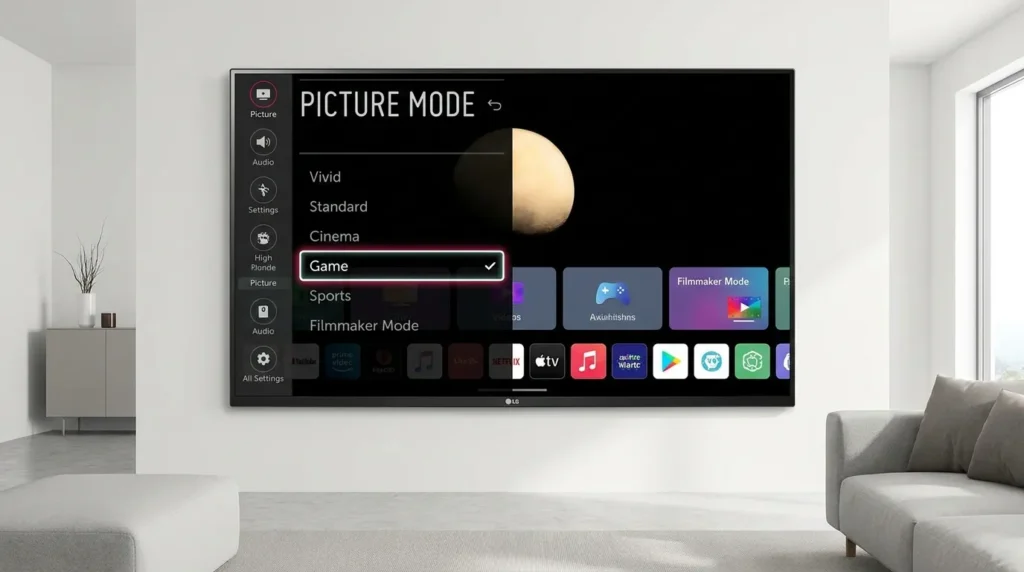
One quick LG-specific note: LG TVs have Filmmaker Mode as a default picture mode on recent models. For desktop use with a connected laptop, switch to Standard or Vivid mode — Filmmaker Mode is optimized for cinema content and can make desktop text look washed out.
Get Audio Playing Through Your LG TV
HDMI carries audio automatically. Most of the time, the moment your laptop detects the TV, sound output switches over on its own.
When it doesn’t:
Windows: Right-click the speaker icon in the taskbar (bottom right). Open Sound settings. Under Output, select your LG TV — it shows as “LG TV,” “Digital Output (HDMI),” or the TV model name. If you don’t see it, unplug and re-plug the HDMI cable. Windows re-scans for audio devices on reconnect.
Mac: Go to System Settings → Sound → Output and select your LG TV from the list.
If audio still won’t route to the TV after doing this, the issue may be inside your LG TV’s settings rather than the laptop. The LG TV sound not working guide covers internal audio settings, including the External Speaker and Digital Sound Out options in webOS that can block external audio from appearing correctly.
Connect Wirelessly to an LG TV
No cable available? Both Windows and Mac have built-in wireless display options that work with LG smart TVs.
Windows 11 — Miracast
Press Windows key + K. A panel opens showing nearby wireless displays. Your LG TV should appear by name — select it and accept the connection prompt on the TV.
On some Windows 11 installations, the Wireless Display feature isn’t installed by default. If your LG TV doesn’t show up, go to Settings → System → Optional features, search for “Wireless Display,” install it, then press Win+K again.
Windows 10 — Miracast
Press Windows key + P, then click “Connect to a wireless display” at the bottom. Select your LG TV from the list. Alternatively, open the Notification Center (bottom right), click “Connect,” and select the TV.
Both work over Wi-Fi Direct — meaning the connection goes laptop-to-TV without routing through your router. For best stability, put both devices on a 5 GHz Wi-Fi network and keep them within 20 feet of each other.
Mac — AirPlay
LG smart TVs from 2019 onward support AirPlay 2 natively. Check the full AirPlay 2 supported TV list if you’re unsure whether your LG model qualifies.
To connect:
- Put your Mac and LG TV on the same Wi-Fi network.
- Click Control Center in the Mac menu bar, then click Screen Mirroring.
- Select your LG TV.
- Enter the passcode shown on the TV screen if prompted.
A 5 GHz Wi-Fi connection makes a real difference here. On 2.4 GHz, AirPlay often drops frames. On 5 GHz at close range, it runs at a stable 1080p.
Chromecast or Google TV Streamer
This works from any laptop — Windows, Mac, or Chromebook — using the Chrome browser. If your LG TV doesn’t have a Chromecast plugged in, a Google TV Streamer or Chromecast with Google TV plugs into any spare HDMI port.
Once the device is set up: open Chrome → click the three-dot menu → Cast → select your device. To cast your full desktop instead of just a browser tab, click “Sources” in the Cast dialog and select “Cast desktop.”
LG-Specific Settings You Should Know
Which HDMI Port Supports 4K at 120Hz?
On LG OLED and QNED models from 2021 onward, HDMI 2 is typically the HDMI 2.1 port — the one that handles 4K at 120Hz. It’s usually labeled in the TV’s input menu as “4K@120Hz” once you select it. If you’re connecting a gaming laptop and want the full 120Hz at 4K, use this port and pair it with an Ultra High-Speed HDMI cable.
Plugging into an HDMI 2.0 port caps you at 4K/60Hz even if your laptop can push higher.
Fix Overscan on Your LG TV
This is the most common LG-specific headache when connecting a laptop. The TV zooms in slightly, cutting off edges of the desktop — the taskbar disappears, windows crop oddly.
Fix it in 30 seconds: press Settings on the LG remote → Picture → Aspect Ratio Settings → Just Scan → On. This disables overscan and shows the laptop signal pixel-for-pixel.
LG Simplink (Auto-Input Switching)
Simplink is LG’s implementation of HDMI-CEC. When it’s enabled, your LG TV automatically switches to the correct HDMI input when a connected device wakes up. If your laptop supports CEC — which most do — enabling Simplink saves you from pressing the Input button every time.
Enable it at: Settings → General → Devices → HDMI Settings → Simplink → On.
Game Mode for Gaming Laptops
Standard LG TV picture modes add 40–80ms of input lag from image processing. For gaming, that’s unacceptable.
Enable Game Mode: Settings → Picture → Select Mode → Game. This cuts input lag to under 5ms on most LG OLED models. Use Game Mode only for gaming — it disables motion smoothing and color processing that you actually want when watching video.
Troubleshooting — LG TV Shows No Signal
Work through these in order. Most connection failures resolve in the first two steps.
1. Swap the cable or port. Try a different HDMI port on the TV. Then try a different cable. Cables fail more often than ports, and a faulty cable produces no error message — just a black screen.
2. Confirm the input. Press Input on the LG remote. Make sure you’ve selected the exact port your cable is in. HDMI 1 and HDMI 2 are independent — selecting the wrong one gives you no signal even with a working connection.
3. Force display detection on Windows. Go to Settings → System → Display → Multiple Displays → Detect. This manually scans for connected monitors. Sometimes Windows misses a new display, especially after waking from sleep.
4. Restart completely. Power the TV off at the wall (not standby), unplug the HDMI cable, wait 30 seconds, plug the cable back in, power the TV on, select the input.
5. Check the resolution. If your laptop is set to a resolution your LG TV doesn’t support — some older LG models cap at 1080p — the TV will show no signal. Set your laptop output to 1920×1080 and retry.
If the LG TV still shows a black screen after all this, the problem may be an HDCP handshake failure, a firmware issue, or a backlight problem rather than the HDMI connection itself. The LG TV black screen fix guide covers each of those causes with specific fixes for LG models.
If you see an error code or flashing indicator on your TV during the connection attempt, use the TV Error Code Lookup tool to find out exactly what it means before opening the service menu.
Frequently Asked Questions
Can I use my LG TV as a second monitor for work?
Yes. On Windows, press Win+P and choose Extend. On Mac, uncheck Mirror Displays in System Settings → Displays. The TV becomes a full second workspace. You can drag windows to it and use the laptop screen and TV independently at the same time.
Do I need a special HDMI cable for a 4K LG TV?
Yes. Standard and High-Speed HDMI cables max out at 10.2 Gbps — not enough for 4K at 60Hz. Get a Premium High-Speed cable (18 Gbps) for 4K/60Hz, or an Ultra High-Speed cable (48 Gbps) for 4K/120Hz.
Does wireless connection work for gaming on an LG TV?
No. Miracast, AirPlay, and Chromecast all introduce 30–100ms of latency. That’s unworkable for any fast-paced gaming. Use a wired HDMI connection and turn on LG Game Mode for gaming setups.
Why does my LG TV show a black screen after I plug in HDMI?
Usually an HDCP handshake failure or an unsupported resolution. Try a different HDMI port, swap the cable, drop your laptop resolution to 1920×1080, and restart both devices. If the issue continues, see the full LG TV black screen fix for model-specific solutions.
My laptop only has USB-C. Can I still connect to my LG TV?
Yes. Use a USB-C to HDMI cable or a USB-C hub with an HDMI output. Make sure the port on your laptop supports DisplayPort Alt Mode — your laptop’s spec sheet will confirm. Most USB-C ports from 2018 onward support it, but a few charging-only ports don’t.