
Quick answer: Go to Settings, find the Reset option, enter PIN 0000 if prompted, and confirm. No remote? Press and hold the pinhole button on the back panel for 15–20 seconds. The exact Settings path depends on which OS your Hisense runs — VIDAA, Roku, Google TV, Android TV, Fire TV, or xClass. All six are covered below.
Soft Reset vs Factory Reset — Try This First
These two things get confused constantly, and choosing the wrong one wastes time.
A soft reset is a power cycle. Unplug the TV from the wall while it’s still on. Wait a full 60 seconds — this drains the capacitors and clears temporary memory. Plug it back in. Your apps, logins, and settings are untouched.
A factory reset wipes everything. The TV returns to the exact state it was in the day you bought it. Every app, password, account, and custom setting is gone permanently.
When to Try a Soft Reset First
A soft reset fixes minor glitches around 60% of the time. If an app froze, navigation is sluggish, or something stopped working after an update, start here. It’s also worth checking whether a Hisense TV firmware update is available before erasing everything — a firmware patch often fixes bugs without requiring a full reset.
You can also soft reset through the menu: Settings → Device Preferences → About → Restart.
When a Full Factory Reset Is Necessary
Go straight to a factory reset if:
- The TV is stuck in a boot loop
- Apps keep crashing after a soft reset and firmware is already current
- You’re selling, gifting, or donating the TV
- Wi-Fi refuses to connect after multiple attempts
- Performance degraded significantly after a firmware update
How to Factory Reset a Hisense TV With a Remote
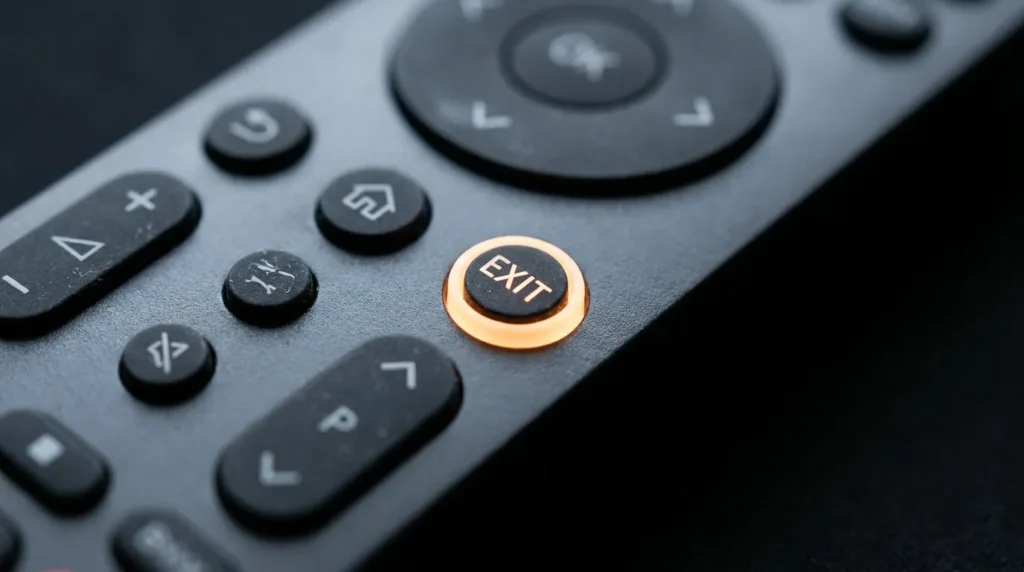
EXIT Button Method (Most Models)
This is the fastest remote path and works across most Hisense models.
- Turn the TV on.
- Press and hold the EXIT button on the remote for 15 seconds.
- When the “Factory Service” menu appears, select OK.
- Turn the TV off. Wait 20 seconds. Turn it back on.
No EXIT button on your remote? Use the OS-specific steps below.
Hisense VIDAA — Factory Reset Steps
VIDAA is Hisense’s own operating system, used on models like the A4 series. Default PIN is 0000.
If you’re not sure which OS your TV runs, the TV Model Number Decoder can identify it from your model number in seconds.
- Press the Settings (gear) icon in the top-left corner of the home screen.
- Scroll down to Support.
- Select Reset to Factory Default.
- Optional: check the box to preserve saved channel lists.
- Click Restore.
- Enter 0000 as the PIN to confirm.
The erase process takes about 75 seconds. The setup wizard appears immediately after.
Hisense Roku TV — Factory Reset Steps
Roku OS doesn’t use a saved PIN. It displays a random 4-digit code on screen during the reset — type that code in to confirm.
- Press the Home button on the remote.
- Navigate to Settings → System → Advanced System Settings.
- Select Factory Reset → Factory Reset Everything.
- Enter the 4-digit code shown on screen.
- Select OK.
The TV reboots to the Roku activation screen. Re-link your account at roku.com/link.
Hisense Roku models take slightly longer to complete the reset than VIDAA because of how Roku OS initializes. Don’t unplug the TV during this — let it finish.
Hisense Google TV — Factory Reset Steps
Found on newer Hisense mid-range and premium models like the U7N series.
- Press the Home button.
- Go to Settings (gear icon, top-right corner).
- Select System → About → Reset.
- Choose Factory Reset and confirm.
Takes 3–5 minutes. The TV restarts with the Google TV setup wizard once done.
Hisense Android TV — Factory Reset Steps
Older Hisense smart TVs often run Android TV rather than Google TV. The menu path is slightly different.
- From the home screen, select the Settings (gear) icon.
- Choose Device Preferences.
- Scroll down and select Reset.
- Choose Erase Everything.
- Confirm.
If there’s no “Device Preferences” option on your model, look under About → Reset instead.
Hisense Fire TV — Factory Reset Steps
Some Hisense budget models in the US (including parts of the A4 lineup) run Amazon Fire TV OS. No PIN is required.
- Go to Settings.
- Select My Fire TV (older models) or Device & Software (newer models).
- Choose Reset to Factory Defaults.
- Select Reset to confirm.
Takes about 2 minutes. The TV prompts you to sign back in with your Amazon account. If Wi-Fi was unstable before the reset, try connecting to a 2.4 GHz network during setup instead of 5 GHz — it’s more stable during initial configuration. For a deeper look at resetting Fire TV devices, the guide on how to reset an Amazon Fire TV Stick walks through the same process in more detail.
Hisense xClass TV — Factory Reset Steps
- Go to Settings → Device Settings.
- Select Restore Factory Settings.
- Enter the displayed PIN to confirm.
On some xClass models, pressing and holding the Power button for 30 seconds also triggers a factory reset.
How to Factory Reset a Hisense TV Without a Remote
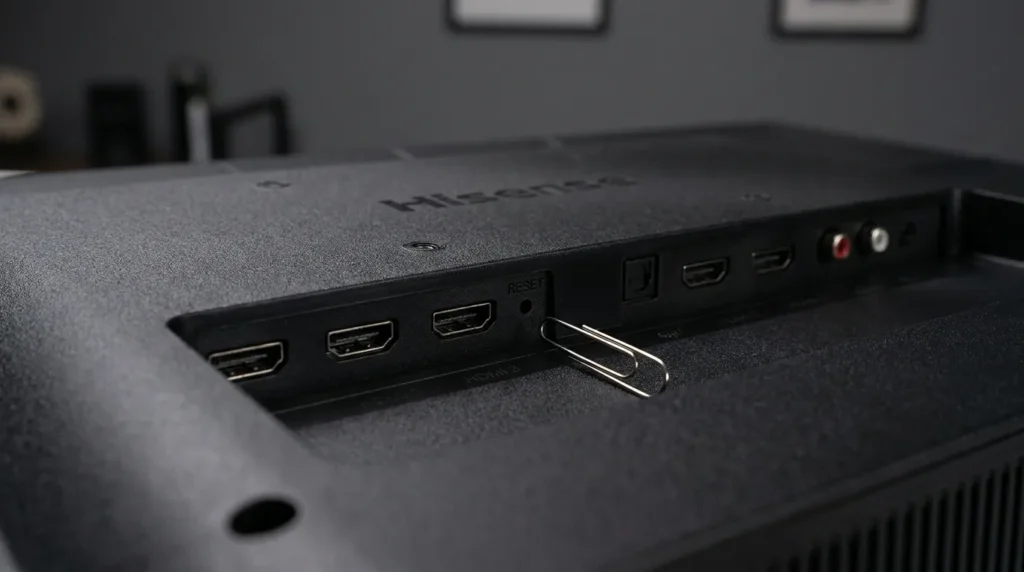
Method 1: Physical Reset Pinhole (Most Reliable)
This method works on most Hisense Roku and Android TV models made after 2019.
- Make sure the TV is on — not in standby.
- Find the small pinhole on the back or bottom edge of the TV. Check near the HDMI or USB ports.
- Use a paper clip, toothpick, or similar pointed object to press and hold the button.
- Hold for 15–20 seconds until the TV restarts.
- Release when you see the Hisense logo appear.
Some xClass models need the physical Power button held for 30 seconds instead of the pinhole.
If you’re having trouble navigating the TV at all without a remote, the guide on how to turn on a Hisense TV without a remote covers button navigation and control workarounds for different models.
A Hisense-compatible universal remote Hisense universal remote costs $8–$12 at most retailers and works with all VIDAA and Roku models.
Method 2: Hisense RemoteNow App
Download the Hisense RemoteNow app on your iPhone or Android phone. It connects over Wi-Fi and gives you full remote control of compatible Hisense smart TVs.
Requirements:
- Your phone and the TV must be on the same Wi-Fi network
- The TV must already be connected to Wi-Fi
Once paired, navigate to Settings through the app and follow the OS-specific reset steps above. Same result, no physical remote needed.
Method 3: Physical Buttons on the TV (Limited Models)
Some older Hisense models have a small joystick or directional buttons on the back or side panel. Press once to bring up a basic on-screen menu, then navigate to Settings. This only works on specific models — if you can’t find navigation buttons, use Method 1 or 2.
The Default PIN and What to Do If You Forgot It
| OS | PIN Required | Default PIN |
|---|---|---|
| VIDAA | Yes | 0000 |
| Roku OS | No PIN — uses on-screen code | N/A |
| Google TV | Usually no | N/A |
| Android TV | Depends on parental control settings | 0000 |
| Fire TV | No | N/A |
If you set a custom PIN on VIDAA and forgot it, call Hisense support at 1-888-935-8880. They can walk you through a service menu override. Avoid entering random PINs repeatedly — some models lock after multiple failed attempts.
TV Is Frozen, Stuck on Logo, or Won’t Boot After Reset
If the TV gets stuck on the Hisense logo during or after a reset:
- Use the pinhole reset button — this bypasses the OS entirely and is the most reliable fix when the menu won’t load.
- Hold it for 20 seconds.
- If it loops again after restarting, unplug the TV for 2 minutes, then try the pinhole reset once more.
Hardware vs Software — How to Tell the Difference
A factory reset clears corrupted system files, bad cached data, and software errors from streaming apps. It cannot fix hardware failures.
Signs the problem is hardware, not software:
- TV makes a clicking or popping sound at startup
- Screen flashes briefly then goes dark while audio still works
- Red indicator light blinks in a repeating pattern and the TV won’t power on
If the TV still won’t boot after a full pinhole reset, you’re likely looking at a failed power board or T-con board. For display issues that survive a reset, the TV no picture troubleshooting guide helps identify whether the fault is hardware or a panel issue.
What to Back Up Before You Reset
A factory reset is permanent. There’s no undo.
Before you hit confirm:
- Streaming credentials: Write down your Netflix, Disney+, Hulu, and Amazon passwords.
- Wi-Fi password: You’ll need this during setup. The TV won’t reconnect automatically.
- Picture settings: Take a phone photo of your calibration settings if you’ve customized them.
- Channel list: VIDAA gives you an option to preserve saved channels — check that box if it appears.
- Local media: If you use VLC, Plex, or MX Player via USB, back up local files to a flash drive first.
What Happens After the Factory Reset
The TV launches the setup wizard — the same one from when the TV was new. Expect to spend 5–10 minutes getting it usable again.
Steps you’ll go through:
- Language and region selection
- Wi-Fi connection (have your password ready — the TV doesn’t remember it)
- Account sign-in (Google, Roku, Amazon, or VIDAA account depending on your OS)
- App reinstallation
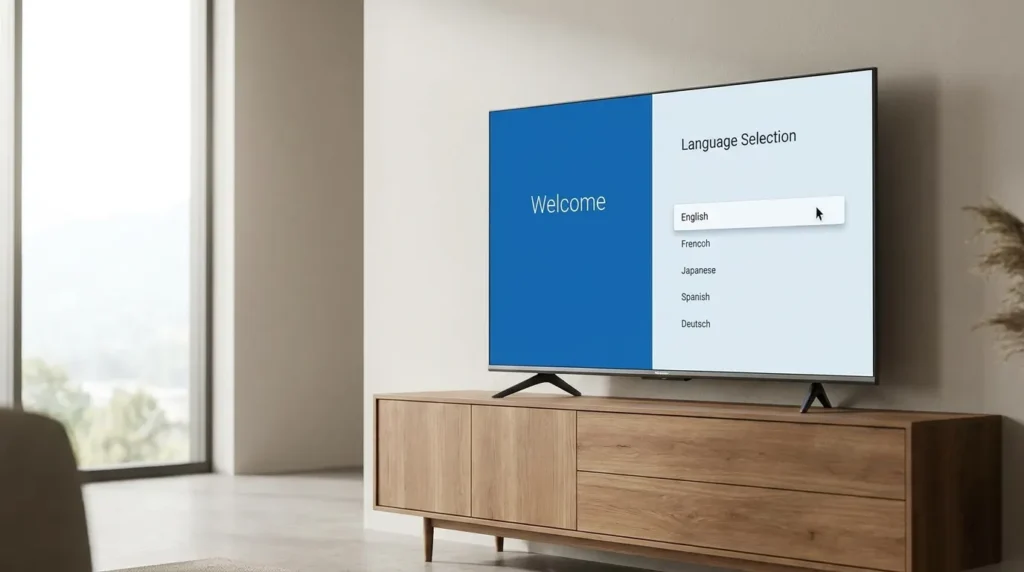
VIDAA takes roughly 5–6 minutes from reset completion to a usable home screen. Roku takes a bit longer because of the Roku account activation step.
If you want to make sure nothing gets missed during setup, the TV setup checklist generator creates a personalized step-by-step list based on your TV type.
Frequently Asked Questions
Does a factory reset delete everything on a Hisense TV?
Yes. All apps, accounts, passwords, picture settings, and saved data are permanently erased. The TV returns to out-of-box condition.
How long does a Hisense TV factory reset take?
VIDAA takes about 75 seconds to erase, then 5 minutes for setup. Fire TV takes about 2 minutes. Google TV takes 3–5 minutes. Roku takes slightly longer than the others. Add 5–10 minutes for the setup wizard on all models.
Will a factory reset fix a Hisense TV that won’t turn on?
Sometimes. If the cause is corrupted software or a failed firmware update, yes. If it’s a hardware failure like a dead power board, no. Use the pinhole reset button if you can’t access the settings menu.
Can I factory reset a Hisense TV with a black screen?
Yes. Use the physical pinhole reset button on the back panel. Hold it for 15–20 seconds while the TV is powered on. The TV restarts even if the screen shows nothing.
What is the default PIN for a Hisense TV?
On all Hisense VIDAA models, the default PIN is 0000. Roku TVs don’t use a saved PIN — they show a random on-screen code during each reset that you enter once.