
This guide provides clear, step-by-step instructions to reset your Insignia Fire TV remote, re-pair it with your TV, and explore alternatives if the reset doesn’t work. Updated for 2026 based on the latest Amazon Fire TV support and user reports from 2025, we’ve compiled the most reliable methods based on official sources and user experiences to help you get back to streaming in no time.
Before You Reset: Basic Troubleshooting
Before attempting a reset, try these quick checks to rule out simple issues:
- Replace Batteries: Remove the old batteries and insert fresh alkaline AAA batteries. Ensure they’re correctly aligned with the positive and negative terminals.
- Clear Obstructions: Insignia Fire TV remotes use Bluetooth, not infrared, but physical objects or interference from other devices can disrupt the signal. Keep the remote within 10 feet of the TV with no obstacles.
- Inspect Buttons: Dirt, spills, or debris can cause buttons to stick. Press each button firmly to ensure they move freely.
- Check for TV Software Updates: Go to Settings > My Fire TV > About > Check for Updates on your TV. Outdated software can cause connectivity glitches, as noted in recent Amazon support docs.
If these steps don’t fix the issue, proceed to the reset methods below. For other TV-related issues, check our guide on fixing Insignia TV won’t turn on.
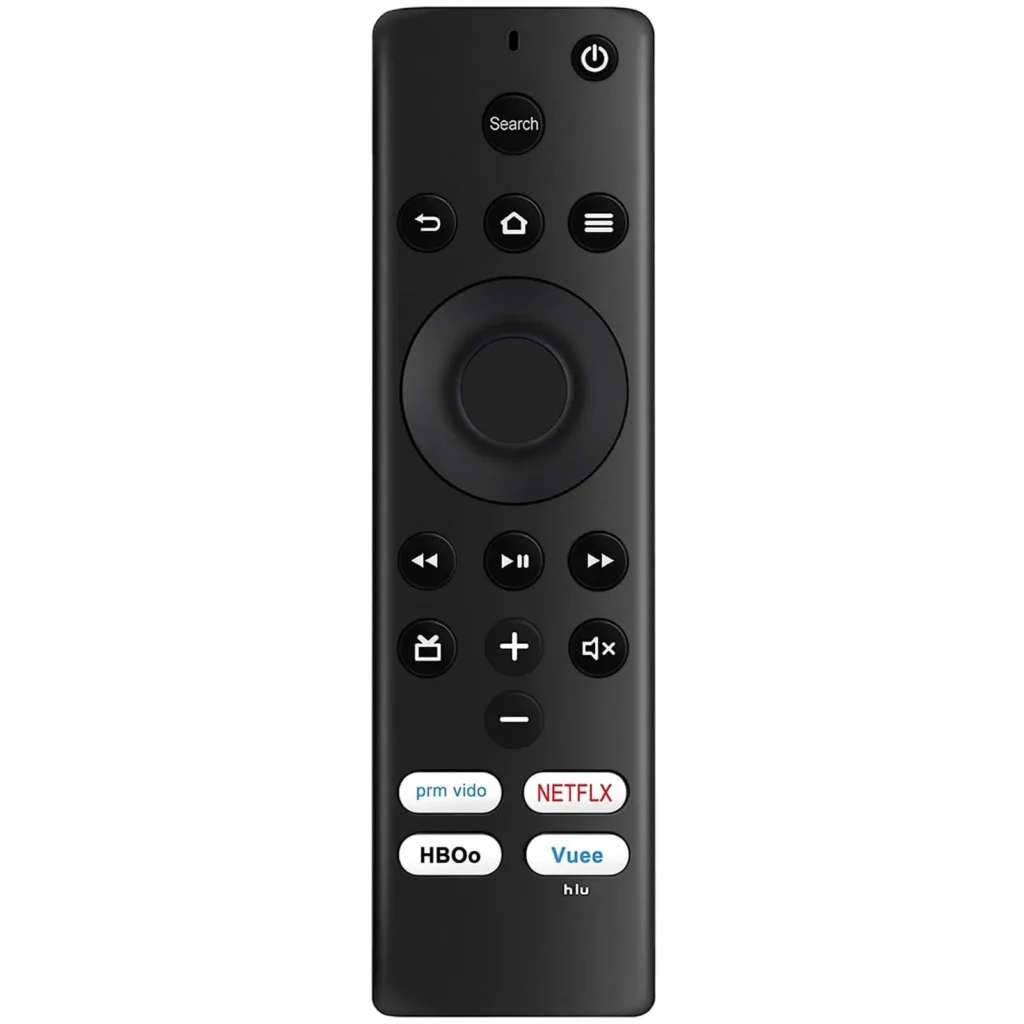
Methods to Reset Your Insignia Fire TV Remote
There are three reset methods you can try, depending on the issue’s severity. Start with a soft reset and progress to a factory reset if needed.
Soft Reset
A soft reset addresses minor glitches without erasing settings. It’s quick and simple.
Steps:
- Remove the batteries from the remote.
- Press and hold the Power button for 15 seconds.
- Release the button and wait 15 seconds.
- Insert fresh batteries.
- Test the remote by pressing the Home button.
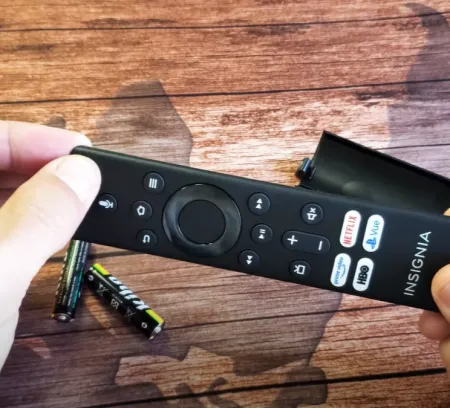
Hard Reset
A hard reset clears the remote’s memory, which can fix more persistent issues.
Steps:
- Remove the batteries from the remote.
- Press every button on the remote once to discharge residual power.
- Wait 60 seconds.
- Insert fresh batteries.
- Wait for the LED to flash (if your remote has one), indicating it’s ready to pair.
Factory Reset
A factory reset restores the remote to its default settings, erasing all paired devices. Use this if other methods fail.
Steps:
- Ensure the remote is within 10 feet of the TV.
- Press and hold the Left, Menu, and Back buttons together for 10 seconds.
- Wait 60 seconds.
- Remove the batteries and unplug the Fire TV from power and HDMI for 60 seconds.
- Plug the TV back in and wait for the Home screen.
- Insert the batteries and press the Home button for 10-15 seconds until the LED flashes (if applicable).
These steps are based on the official user guide for the Insignia NS-RCFNA-21 remote.
How to Re-pair Your Insignia Fire TV Remote
After resetting, you may need to re-pair the remote with your Insignia Fire TV.
Steps:
- Turn on your TV and ensure it’s on the Home screen.
- Press and hold the Home button for 10-15 seconds.
- Look for an LED flash (if your remote has one) or on-screen pairing instructions.
- Follow any prompts to complete the pairing.
Tips if Pairing Fails:
- Keep the remote within(Clone) within 10 feet of the TV.
- Remove and reinsert batteries.
- Repeat the pairing process.
- Use the Amazon Fire TV App for Guided Pairing: If holding Home doesn’t work, open the app, go to Settings > Controllers & Bluetooth Devices > Amazon Fire TV Remotes > Add New Remote for step-by-step help. This is especially useful after TV software updates.
- Try the Fire TV app to navigate to the pairing menu.
For additional pairing issues, see our guide on syncing a Roku remote without a pairing button, as some steps may apply.
What to Do If Resetting Doesn’t Work
If none of the reset methods work, try these alternatives:
- Use the Amazon Fire TV App: Download the Fire TV app on your smartphone to control your TV. Ensure your phone and TV are on the same Wi-Fi network, then follow the app’s pairing instructions.
- Purchase a Replacement Remote: Ensure the replacement is a Bluetooth-enabled Fire TV remote, such as the NS-RCFNA-21 Rev H (latest revision as of 2026). Compatible options are available on Amazon or Best Buy.
- Reset the TV: As a last resort, reset your TV to factory settings via Settings > System > Reset to Factory Defaults. Note that this clears all personal data.
Frequently Asked Questions
Why is my Insignia Fire TV remote not working?
How do I know if my remote needs a reset?
Can I use a universal remote with my Insignia Fire TV?
What if my TV is stuck on “searching for remote”?
Is there a pairing button on the Insignia remote?
Has anything changed with Insignia Fire TV remotes in 2026?
Conclusion
Resetting your Insignia Fire TV remote is a straightforward way to fix common issues like unresponsiveness or pairing problems. With these 2026-updated steps, start with basic troubleshooting, then try a basic or full reset. If these don’t work, the Amazon Fire TV app or a replacement remote can get you back in control. For related TV issues, explore our guides on resetting a Toshiba TV or fixing a black screen. For related TV issues, explore our guides on resetting a Toshiba TV or fixing a black screen.