
The TCL service menu is a hidden factory interface built into every TCL TV. Technicians use it to run panel diagnostics, verify hardware, and check calibration data. Consumers don’t normally see it — and TCL doesn’t advertise it.
Getting in requires either a specific numeric code entered through the Picture menu or a precise button sequence on your remote. The method depends entirely on which platform your TCL TV runs. Use the wrong method for your model and nothing happens.
This guide covers every confirmed entry method, organized by TV platform.
What Is the TCL Service Menu?
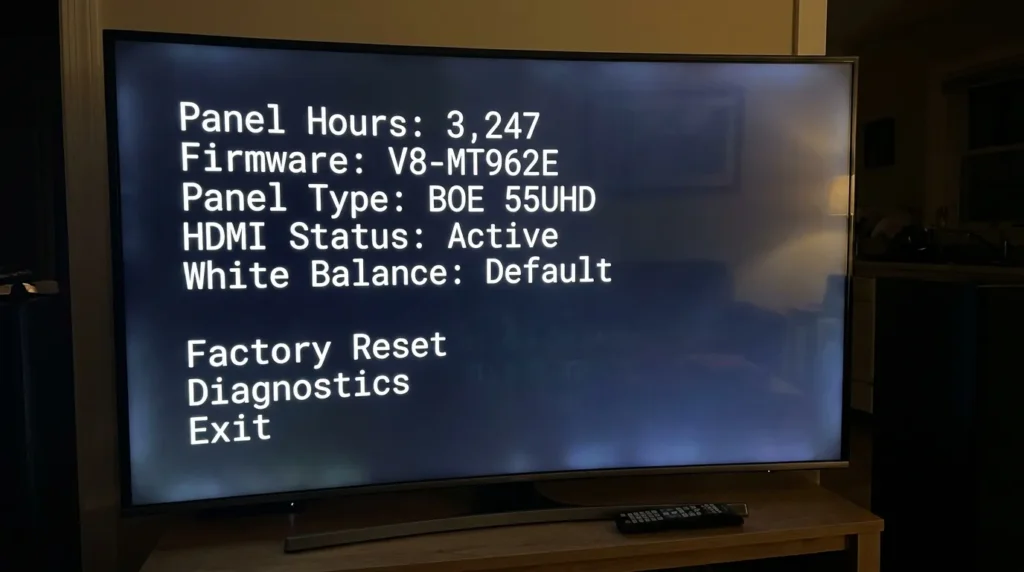
The service menu sits below the consumer interface — below everything you normally have access to in Settings. It shows raw hardware data: panel hours, firmware build information, HDMI signal status, white balance offset values, and factory calibration baselines.
Most of what’s inside is read-only reference data. A small portion of it can alter how the TV behaves at the hardware level — permanently. Miscalibrate the wrong value and a standard factory reset won’t fix it, because factory resets don’t touch hardware-level memory.
Open it. Check what you need. Change nothing unless you’re a trained technician.
What You Need Before You Start
The original TCL remote is required. Universal remotes and phone-based remote apps don’t work for service menu access on most models. Newer Google TV sets use a button sequence that includes Fast Forward, Rewind, and Back — buttons that many third-party remotes don’t send correctly.
If you’re working with a replacement or third-party device, check our TCL TV universal remote codes guide first to confirm which buttons your remote actually transmits before attempting any service menu entry sequence.
Your TV also needs to be powered on and displaying a normal picture — not sitting on a setup wizard or loading screen.
Find Your TCL TV Platform First
The right service menu method depends on your TV’s operating system. Flip your TV around and check the sticker on the back, or go to Settings → System → About to find the model number.
Use our TV model number decoder tool if you’re unsure what your model number means — it identifies the platform, series, and year from the TCL model string so you know exactly which section below applies.
TCL Service Menu Codes — By Platform
TCL Google TV (2022–2025 Models)
These are the current-generation TCL sets — C6, C7, C8, Q6, Q7, Q8, and RM series from 2022 onward. They run Google TV and use a button sequence rather than a numeric code.
Step-by-step:
- Turn the TV on
- Press Home to go to the main screen
- Open Settings (gear icon) → System → About
- Wait for the full system information screen to load
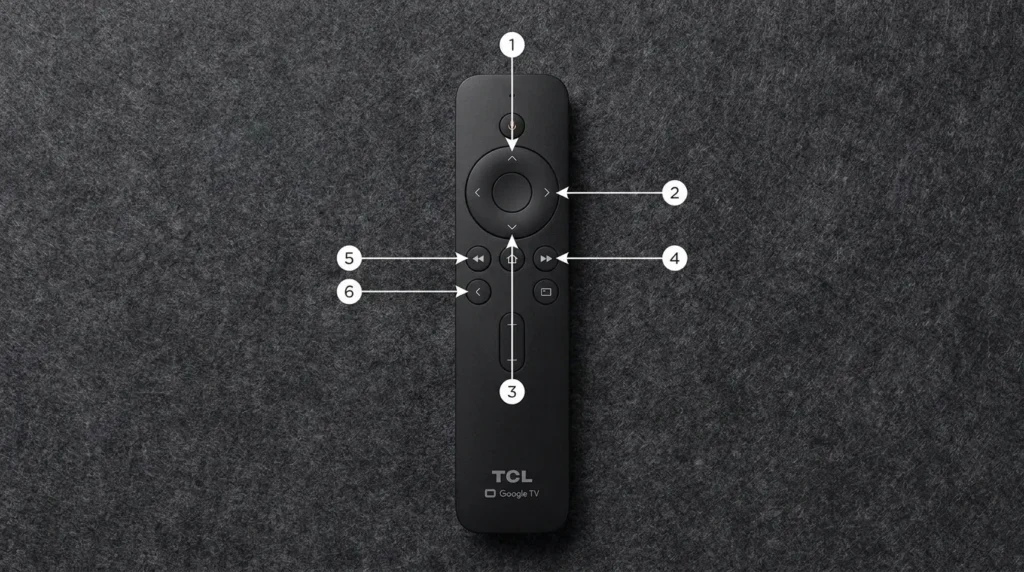
- On the remote, press this exact sequence:
Up → Right → Down → Right → Right → Up → Up - Press Fast Forward 3 times
- Press Rewind 2 times
- Press the Back arrow (on the upper-left area of the remote, just below the power button)
The service/factory menu will open. If it doesn’t, return to the About screen and try again — you must be on the About screen, not inside any submenu within it, when you begin the sequence.
TCL Android TV Models (2018–2021)
Older TCL Android TV sets — including the S, P, and U series from that era — use a numeric code entered through the Picture menu. No button sequence needed.
Method 1 — Code 9735 (most widely confirmed):
- Turn the TV on
- Press Menu or Settings
- Navigate to Picture
- Select Contrast
- Press 9 → 7 → 3 → 5 on the numeric keypad
- Select FAC HOTKEY and press OK
Code 9735 is the most reliably confirmed code across Android TV chassis TCL sets.
Method 2 — Code 6425:
- Press Menu → Picture → Contrast
- Enter 6 → 4 → 2 → 5
Method 3 — Code 1950:
- Press Menu → Picture → Contrast
- Enter 1 → 9 → 5 → 0
Code 1950 is reported most often on North American TCL Android TV models. It opens a factory settings page on some firmware versions and a picture calibration menu on others — the behavior varies by chassis.
TCL Roku TV Models
TCL Roku TVs don’t have a technician-accessible service menu reachable through a code sequence. Roku OS is closed at the manufacturer level — TCL doesn’t expose hardware diagnostics through the standard remote input path on these sets.
Roku TVs have their own diagnostic screen (press Home 5 times → Fast Forward → Play → Rewind → Play → Fast Forward), but this shows Roku OS system data, not TCL hardware data.
For a full factory reset on TCL Roku TV: Settings → System → Advanced System Settings → Factory Reset → Factory Reset Everything
Older TCL Non-Smart / Non-WiFi Models (Pre-2018)
For legacy non-smart TCL TVs, the entry method mirrors the Android TV numeric approach but without the smart platform layer on top.
- Press Menu
- Go to Picture → Contrast
- Press 9 → 7 → 3 → 5
Same codes apply as Android TV. Try 9735 first, then 6425 if 9735 doesn’t respond.
All Confirmed TCL Service Menu Codes — Quick Reference
| Code | Works On | Entry Path | What It Opens |
|---|---|---|---|
| 9735 | Android TV / Legacy | Menu → Picture → Contrast | Factory menu (most common) |
| 6425 | Android TV / Legacy | Menu → Picture → Contrast | Factory settings area |
| 6428 | Select Android TV | Menu → Picture → Contrast | Alternate factory area |
| 1950 | Older North America | Menu → Picture → Contrast | Factory / picture calibration |
| 9705 | Select models | Menu → Picture → Contrast | Diagnostic screen |
| 6405 | Select models | Menu → Picture → Contrast | Limited factory settings |
| Button sequence | Google TV (2022+) | Settings → System → About | Full service / factory menu |
Not sure which code fits your exact model? Our TV service menu code finder tool lets you enter your TCL model number and returns the confirmed entry method.
What’s Inside the TCL Service Menu
Safe to Read
These items won’t change anything when you view them:
- Total power-on hours — useful if you’re buying a used TCL TV and want to verify actual usage
- Panel type and manufacturer — identifies which panel supplier built the display
- Firmware version and build date
- HDMI signal status — can help diagnose signal handshake issues
- Color test patterns — full-screen white, red, green, blue, and black screens for visual panel checking
- Factory picture baseline values — the original calibration state when the TV left the factory
Settings You Must Never Change
These exist in the service menu but should not be touched unless you have specific technical training:
- ADC / White Balance — hardware-level color output. Misadjust this and every picture mode is permanently affected. A factory reset will not undo it.
- NVM / EEPROM — stores hardware configuration. Incorrect writes can corrupt the TV’s memory in ways that require physical repair.
- Panel Type / Project ID — tells the TV what hardware it’s running on. A wrong value causes broken menus or a permanent black screen.
- Region / Shipping Flags — controls regional feature availability. Changing this can disable inputs or remove menu options.
- Hotel Mode — restricts user access to settings. Accidentally enabling this can lock you out of your own TV’s menus.
If you accidentally navigate into one of these screens, press Back immediately without selecting anything.
Code Not Working? Check These Four Things
1. Wrong platform for the method you tried.
Numeric codes (9735, 1950, etc.) do not work on Google TV models. Google TV uses the button sequence only. If you have a 2022 or newer TCL, skip the codes and use the sequence.
2. Recent firmware update.
Some OTA updates relocate or close the code entry path. If your TV updated in the last few weeks, the numeric method may no longer work on that firmware version.
3. Wrong submenu position.
The code must be entered with the Contrast slider itself highlighted, not while a sub-item inside the Contrast screen is selected. Back out one level and try again.
4. Remote type mismatch.
Some Bluetooth-only remotes don’t transmit numeric input correctly into the Contrast field. If your remote has both Bluetooth and IR, try pointing it directly at the TV’s IR sensor and entering the code while in IR mode.
If the TV is also showing other problems beyond the service menu not opening — like not powering on at all — there may be a hardware issue separate from menu access. See our guide on fixing a TCL TV that won’t turn on for those symptoms.

How to Exit the Service Menu
Press Back or Exit on the remote. The menu will close and return you to the previous screen.
Don’t unplug the TV while the service menu is open. Depending on which screen is active, the TV may attempt to save values when it loses power, which could write incomplete data to NVM.
If the remote stops responding while you’re inside the service menu, hold the physical power button on the TV for 5 seconds to force a full restart. The service menu won’t save anything mid-session from a hard restart.
TCL Factory Reset — Standard Method, No Codes Needed
If your goal is simply restoring the TV to its out-of-the-box state, you don’t need the service menu at all. Use the built-in reset option:
Google TV:
Settings (gear icon) → System → About → Factory Reset → confirm → enter PIN if prompted
Android TV:
Settings → Device Preferences → About → Factory Reset
Roku TV:
Settings → System → Advanced System Settings → Factory Reset → Factory Reset Everything
A standard factory reset removes all accounts, apps, downloaded content, and personal settings. It does not reset hardware-level calibration values — those live in NVM and are only accessible through the service menu.
FAQ
Will opening the TCL service menu void my warranty?
Viewing it generally won’t. Changing values is where warranty coverage gets complicated. TCL service centers can check NVM data to see whether internal settings were altered by an unauthorized user. Read-only access is low risk.
What’s the difference between a factory reset and a service menu reset?
A factory reset wipes software: accounts, apps, picture profiles, network credentials. A service menu reset can alter hardware-level values — white balance offsets, NVM entries, regional flags. They operate on completely different layers of the TV.
Do I need the original TCL remote?
For Google TV models, almost always yes — the button sequence uses Fast Forward, Rewind, and Back, which many third-party remotes don’t support. For Android TV and legacy models, any remote with a working numeric keypad that transmits IR correctly may work. If you’re unsure what your remote supports, the remote control button explainer tool can help you identify exactly which functions your remote sends.
Which code works on TCL Roku TV?
None of the standard TCL codes open a hardware service menu on Roku TV. The Roku OS doesn’t expose that layer. Use Roku’s built-in diagnostic screen for software-level system data, or the standard factory reset for a full wipe.
Can I check panel hours without the service menu?
No. Panel hour data only appears inside the service menu. If you’re buying a used TCL TV and want to verify how many hours are on the panel, this is the only way to access that figure.
For service menu access on other TV brands, see our guides on Hisense TV service menu codes, Samsung TV service menu codes, and LG TV service menu codes. For a complete multi-brand reference, visit our full service menu codes guide for all LCD/LED TVs.