
Your Vizio TV can see your WiFi network but won’t connect. Or it connects, then drops the signal 10 minutes later. Or it just spins forever on the password screen. Whatever version of this you’re dealing with, one of the fixes below will solve it.
The most common causes are a disabled DHCP setting, a router broadcasting only 5GHz (which older Vizio models can’t use), a wrong password, or a firmware bug that clears with a proper restart. Work through these fixes in order — most people solve this before Fix 5.
If you’ve never connected your Vizio to a network before, start with this guide on how to connect a Vizio TV to the internet first, then come back here if something blocks you.
First — Is the Problem Your TV or Your Router?
This one step saves 20 minutes of trying the wrong fixes.
Connect a phone, laptop, or tablet to the same WiFi network. If it connects without any issue, the problem is with your Vizio TV — not the router. Jump straight to Fix 3 or Fix 4.
If nothing in your home can connect, the issue is your internet service or the router itself. Run through Fix 1 first, then call your ISP if nothing changes.
Fastest diagnostic: turn on your phone’s hotspot and try connecting your Vizio TV to it. If the TV connects to the hotspot but not your home router, the problem is on the router side — MAC filtering, band settings, or a router glitch.
The 6 Most Common Causes
- Wrong WiFi password — case-sensitive, special characters included
- DHCP disabled on the TV
- Router broadcasting only 5GHz — older Vizio TVs only support 2.4GHz
- MAC address filtering on the router blocking the TV
- Corrupt TV software configuration or outdated firmware
- Router’s Auto-Optimize Network feature pushing devices off 2.4GHz
Fix 1 — Power Cycle Your TV and Router
This clears roughly 30% of Vizio WiFi failures on its own.
Pressing the power button on the remote is not a real restart. Here’s how to do it correctly.
Router:
- Unplug the router from the wall outlet.
- Wait 30 seconds minimum.
- Plug it back in.
- Wait 2 full minutes before trying to connect.
Vizio TV:
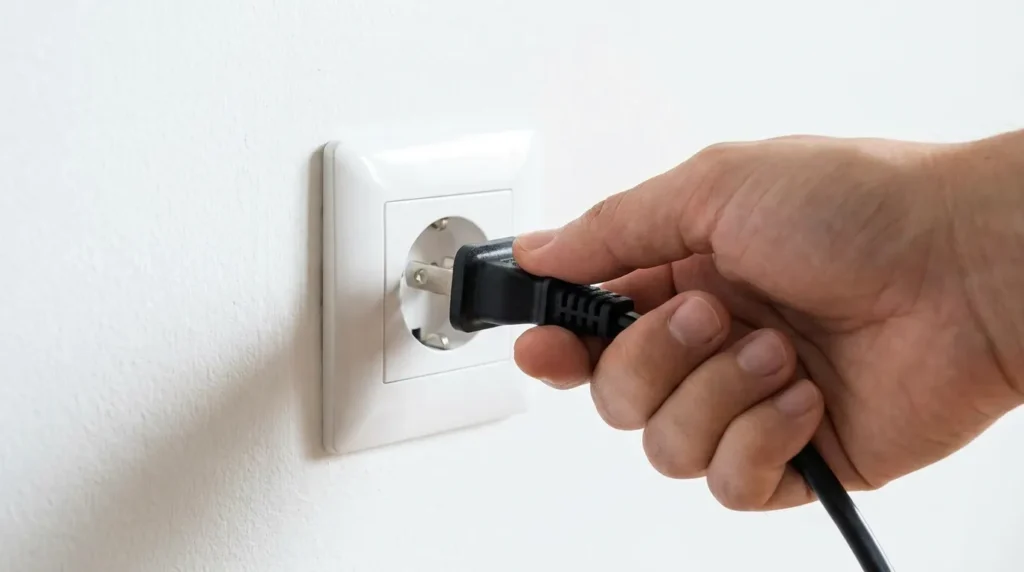
- Unplug the TV’s power cable from the wall — not just the remote.
- Press and hold the physical power button on the TV for 15 seconds. This drains residual charge from the board.
- Wait 60 seconds.
- Plug the TV back in.
- Try connecting to WiFi.
Fix 2 — Re-Enter Your WiFi Password
Vizio’s on-screen keyboard is slow and easy to mistype on. One wrong character causes an authentication error every single time.
- Write down your exact WiFi password — capital letters, numbers, and symbols included.
- On the TV, go to Menu > Network > Wireless Networks.
- Select your network name.
- Choose Forget This Network.
- Reconnect from scratch and enter the password one character at a time.
WPA3 note: If your router uses WPA3 security and your Vizio TV is more than 3–4 years old, the TV may not support it. Log into your router admin page and switch security to WPA2-Personal temporarily. This resolves authentication failures on older Vizio models.
Fix 3 — Check 2.4GHz vs 5GHz Band Compatibility
This is the most overlooked cause — and one of the most common.
Vizio TVs from 2015–2018, and some budget models from 2019–2020, only support 2.4GHz WiFi. If your router is set to broadcast 5GHz only, the TV cannot connect regardless of the password.
How to check your router:
- Type 192.168.1.1 or 192.168.0.1 into a browser on your phone or laptop.
- Log into the router admin panel.
- Go to Wireless Settings.
- Enable Dual-Band mode — this broadcasts both 2.4GHz and 5GHz at the same time.
- If possible, create separate names for each band (e.g.,
Home_2GandHome_5G). - Connect your Vizio TV to the 2.4GHz network.
If your router has Band Steering or Smart Connect enabled, turn it off. That feature forces devices onto 5GHz automatically, which blocks older TVs silently.
Fix 4 — Enable DHCP on Your Vizio TV
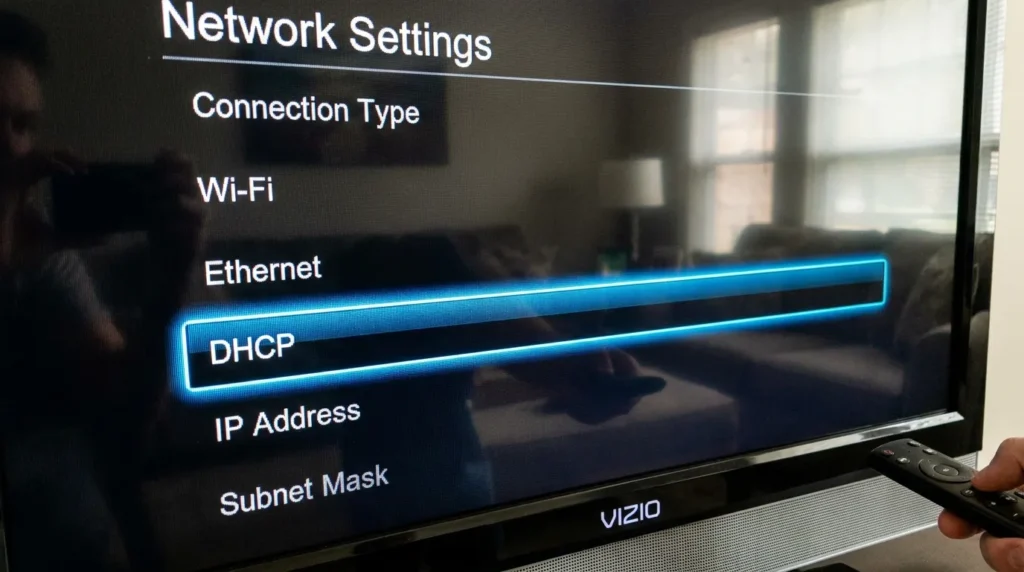
DHCP is a protocol that lets your router assign an IP address to the TV automatically. If DHCP is turned off, the TV gets no address and can’t reach the internet — even with the right password and a working router.
Steps:
- Press Menu on your Vizio remote.
- Navigate to Network > Manual Setup > DHCP.
- If it shows OFF, press the right arrow to turn it ON.
- If it’s already ON, turn it OFF, restart the TV completely, then turn it ON again.
- Try connecting to your WiFi network.
Toggling DHCP off and back on clears the stored IP configuration and forces the TV to request a fresh address from the router. This is one of the most effective fixes for Vizio SmartCast connection failures.
If you need to check what IP address the TV is receiving after this, this walkthrough on how to find your Vizio TV’s IP address shows the exact menu path.
Fix 5 — Change DNS to Google’s Servers
If DHCP is on and the TV shows “Connected” in the network menu but apps still won’t load, the issue is DNS. The TV has a network connection but can’t resolve web addresses.
Steps:
- Press Menu on the remote.
- Go to Network > Manual Setup.
- Turn DHCP OFF.
- Enter your IP address manually. Find it by checking the router admin page or connected device list.
- Set DNS to: 8.8.8.8 (primary) and 8.8.4.4 (secondary). These are Google’s public DNS servers and are reliable on any network.
- Save and attempt to reconnect.
This fix is especially effective when the TV connects to WiFi but streaming apps show “no internet” errors.
Fix 6 — Disable MAC Address Filtering on Your Router
MAC address filtering is a router security feature that only allows pre-approved devices to join the network. If it’s enabled and your Vizio TV isn’t on the list, the router rejects it silently — even with the correct password.
How to check:
- Log into your router admin page (192.168.1.1 or 192.168.0.1).
- Go to Advanced Settings or Security.
- Find MAC Address Filtering or MAC Filter.
- Either switch it OFF, or add your TV’s MAC address to the allowed list.
Find your Vizio TV’s MAC address:
- Go to Menu > Network > Manual Setup.
- Look for MAC Address — a 12-character code like
A1:B2:C3:D4:E5:F6.
Add that address to the router’s allow list, or simply disable filtering entirely. Most home networks don’t need it.
Fix 7 — Turn Off Auto-Optimize Network on Your Router
Some routers from Xfinity, Netgear, and TP-Link include an Auto-Optimize Network feature. It tries to route high-performance devices to 5GHz automatically. For Vizio TVs that only support 2.4GHz, this quietly blocks the connection every time.
Steps:
- Log into your router admin panel.
- Search for Auto-Optimize Network, Band Steering, or Smart Connect.
- Turn it OFF.
- Restart both the router and the TV.
- Try reconnecting to WiFi.
This fix is completely absent from most troubleshooting guides. It solves the problem for a specific group of Vizio users whose routers have this feature enabled by default.
Fix 8 — Update Your Vizio TV Firmware
Outdated firmware causes real connection problems. Vizio has released SmartCast updates that directly patch authentication failures, DHCP issues, and random WiFi drops on multiple TV models. If you’re running old software, an update often fixes this permanently.
Update via Ethernet (if WiFi won’t connect):
- Connect an Ethernet cable from your router to the TV’s LAN port on the back.
- Go to Menu > System > Check for Updates.
- Download and install any available update.
- After the TV restarts, disconnect Ethernet and test WiFi.
For the complete process including the USB update method — useful if there’s no Ethernet port — see the full guide on how to update your Vizio TV firmware.
Fix 9 — Factory Reset Your Vizio TV
A factory reset wipes all stored network settings, which fixes connection failures caused by corrupted data. This is a last resort before deciding there’s a hardware fault.
What you’ll lose: All app logins, saved networks, picture settings, and personalized configurations. You’ll run through initial setup again.
Steps:
- Press Menu on the remote.
- Go to System > Reset & Admin > Reset TV to Factory Defaults.
- Enter the PIN. The default PIN is 0000.
- Confirm the reset and wait for the TV to restart.
- Follow the setup process and reconnect to WiFi.
If you’ve forgotten the PIN and 0000 doesn’t work, try the less destructive option first: System > Reset & Admin > Soft Power Cycle. That clears software state without wiping everything.
Fix 10 — Connect via Ethernet Instead
If WiFi keeps failing after every fix above, plug your Vizio TV directly into the router with an Ethernet cable. This bypasses the TV’s wireless adapter completely and delivers a stable, faster connection.
Most Vizio TVs have an Ethernet port on the back panel. No configuration is needed — plug in the cable and the TV connects automatically.
This is also a diagnostic step: if the TV works fine over Ethernet but not WiFi, the wireless adapter is the likely problem.
If your remote is missing or broken and you can’t navigate the TV’s settings, this guide on connecting a TV to WiFi without a remote covers using the Vizio SmartCast mobile app as a workaround.
Still Not Connecting? Signs the WiFi Adapter Has Failed
If nothing above worked and the TV connects over Ethernet without any issues, the built-in WiFi adapter may have physically failed. This happens more on TVs that are 5+ years old or have been exposed to heat, humidity, or power surges.
Hardware failure signs:
- The TV finds zero WiFi networks even with the router 3 feet away
- WiFi worked fine, then stopped entirely after a power event
- Every connection attempt ends at “Unable to connect” regardless of network
- Ethernet works perfectly but WiFi never does
Contact Vizio at support.vizio.com. Have your model number (on the sticker at the back of the TV) and purchase date ready. TVs under warranty get hardware replacements covered. Out-of-warranty TVs can run a streaming stick — Roku or Fire Stick — plugged into an HDMI port as a full replacement for built-in SmartCast, at a fraction of the repair cost.
You can also run a check with the TV Error Code Lookup tool — if your Vizio is displaying any specific error codes alongside the connection failure, this will tell you exactly what they mean.
FAQ
Why does my Vizio TV connect to WiFi but show no internet?
The TV has a network link but didn’t get a valid IP address or DNS route. Toggle DHCP off and on again (Fix 4), and try setting DNS to 8.8.8.8 manually (Fix 5). Also restart the router — IP lease expiration after a long idle period is a frequent cause.
Why does my Vizio TV keep disconnecting from WiFi?
Frequent drops usually mean: the router is channel-hopping and the TV loses its connection each time, or the TV is connecting to 5GHz but the signal is too weak at that distance. Set a fixed channel on your router (channels 1, 6, or 11 work best for 2.4GHz), and confirm the TV is on 2.4GHz — not 5GHz.
Vizio TV won’t find my WiFi network at all — what’s wrong?
Check that your router is broadcasting the SSID (not hidden), the TV is within range, and the router is running on a frequency the TV supports. Also check that the router has not blacklisted the TV through MAC filtering. Move the router closer temporarily to rule out signal distance as the issue.
Can I use my Vizio TV without WiFi?
Yes. HDMI devices like cable boxes, gaming consoles, Blu-ray players, and streaming sticks work completely independently of the TV’s built-in internet connection. For the full breakdown of what still works without internet, see will a smart TV work without internet.
Once you’re back online, if the TV feels slow to respond or apps take a long time to load, check why your Vizio TV is running slow — there are straightforward fixes for that too.