
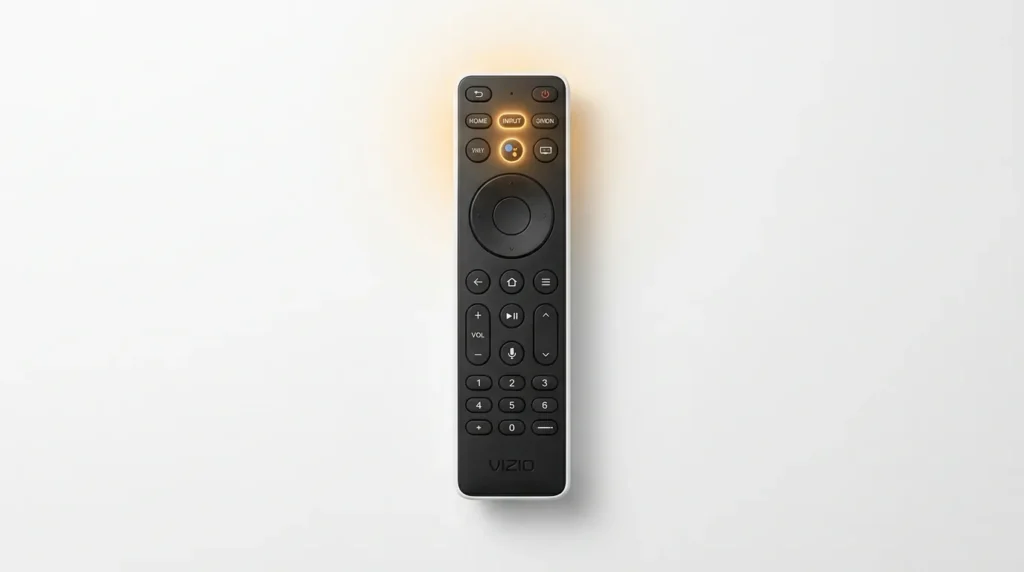
To exit demo mode on a Vizio TV, power it on and immediately press and hold the INPUT button on your remote for 10 seconds. If you have no remote, press and hold the Vol Down + Input buttons on the TV panel simultaneously for 10–15 seconds. For persistent cases, go to Menu > System > Reset & Admin > Exit Demo Mode.
That covers most situations. But if your Vizio is deeply stuck — remote unresponsive, buttons not reacting, or demo mode keeps coming back — the six methods below will walk you through every fix in order of effort.
Setup Mode vs. Demo Mode — What’s the Difference?
These two get mixed up constantly, and they are not the same thing.
Setup mode is the initial wizard that runs on first boot or after a factory reset. It asks for language, Wi-Fi, and account sign-in. If your TV loops on this screen and won’t proceed, that’s a setup mode problem.
Demo mode (also called Store Demo or Retail Mode) is a separate state where the TV plays promotional content on a loop with exaggerated brightness and picture settings. Vizio ships TVs this way for store display. If you see the message “Store Demo is launching” on screen, that’s demo mode specifically.
Both problems share the same solutions below. The distinction matters only when you’re choosing where to look in the menus.
Why Your Vizio TV Got Stuck in Demo Mode
Knowing the cause cuts your troubleshooting time in half.
You chose “Store” during initial setup. The first-run wizard asks whether the TV is for Home Use or Store Demo. One wrong press — easy to do when buttons feel stiff on a new unit — and you’re in retail mode.
Factory reset defaulted back to demo. After a reset, Vizio treats the TV as fresh out of the box. It defaults to store display settings until the user completes setup and explicitly selects Home Use.
ECO mode is blocking your remote. This is the cause that almost every guide misses. Vizio’s ECO mode can make the remote unresponsive, so the TV looks stuck when the actual problem is a communication failure between the remote and the TV. If your remote suddenly stopped working mid-demo mode troubleshooting, press and hold the Mute button on the remote for 3–5 seconds to restore control.
Firmware glitch or mainboard issue. Less common, but a corrupted firmware update or a failing mainboard can lock the TV into demo mode. In this case, standard fixes won’t hold — see Methods 6 and the hardware section below.
Method 1 — Exit Demo Mode With Your Remote
The fastest fix. Works on the majority of Vizio SmartCast and VIA+ models.
- Turn the TV completely off.
- Power it back on.
- Watch for the message: “Store Demo is launching. To cancel, press and hold the Input button.”
- Immediately press and hold the INPUT button on your Vizio remote for 10 seconds, or until the message disappears.
- The TV will drop into the normal setup wizard. Complete the language and Wi-Fi steps.
- Once on the home screen, go to Menu > Preferences (or System Settings) > Shop-front Display Setting.
- Set Demo Mode to Off and Picture Reset Mode to Off.
That last step — disabling Picture Reset Mode — is critical. Skip it and some Vizio models will flip back to demo behavior on the next power cycle.
Menu paths vary by model. Newer SmartCast TVs use Settings > System > Reset & Admin > Exit Demo Mode. Older VIA models use Menu > System > Demo Mode > Off. If you’re unsure which interface your TV has, the TV Model Number Decoder can identify your exact series and its menu layout from your model number.
Method 2 — Exit Demo Mode Without a Remote
No remote? The physical buttons on the TV body handle everything.
Single-button models (most Vizio TVs made from 2019 onward): These have one multi-function button, usually on the back panel or the bottom edge.
- Power the TV on.
- When the “Store Demo is launching” message appears, press and hold the single button for 10 seconds.
- The TV cancels demo mode and enters setup.
Multi-button models (older Vizio TVs):
- Locate the Volume, Input, and Power buttons on the TV panel — typically bottom-right.
- Power on the TV.
- Press and hold Vol Down + Input at the same time for 10–15 seconds.
- A reboot prompt appears. After reboot, demo mode clears.
Once you’re navigating menus via the panel, the Volume buttons scroll up and down through options, and the Input button acts as Select/Confirm.
For a full breakdown of controlling your Vizio without any remote — including changing inputs and accessing settings entirely through the panel — see the guide on how to turn on a Vizio TV without a remote or power button.
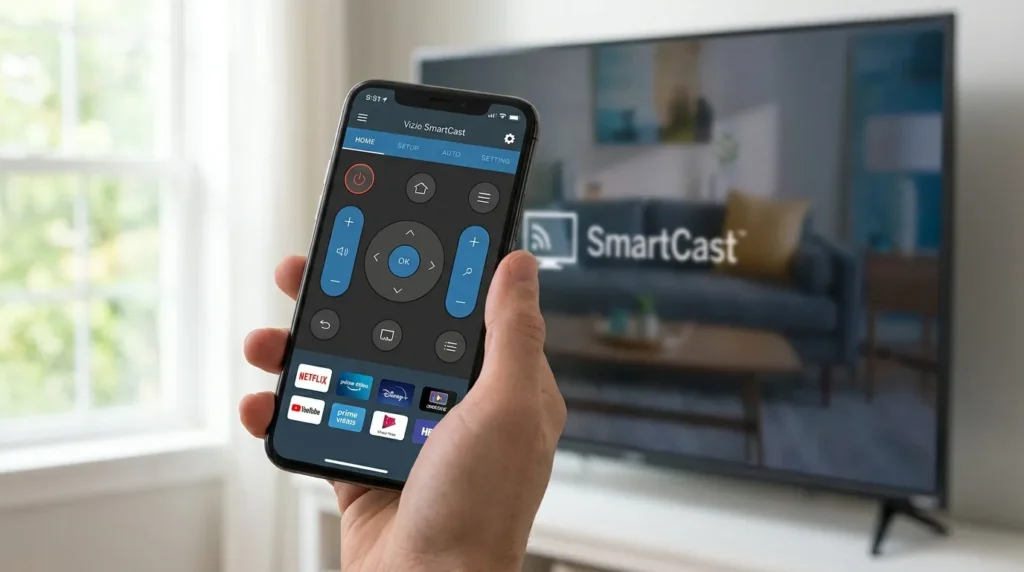
Method 3 — Use the SmartCast App as a Remote
If your remote is gone and the physical buttons aren’t cooperating, your phone can substitute — provided the TV already has a Wi-Fi connection.
- Download the Vizio SmartCast app from the Google Play Store or Apple App Store.
- Make sure your phone and TV are connected to the same Wi-Fi network.
- Open the app and tap Devices. It scans and finds your Vizio TV automatically.
- Tap Remote to open the on-screen virtual remote.
- Use the virtual INPUT button following the same steps as Method 1.
One hard limit: this method only works if the TV completed its Wi-Fi setup before getting stuck in demo mode. If the TV never connected to Wi-Fi, the app has no way to reach it. Move to Method 4 in that case.
Method 4 — Power Cycle (Soft & Hard Reset)
A power cycle clears temporary software glitches and can break a demo mode loop without any menu navigation.
Standard soft power cycle:
- Unplug the TV from the wall outlet — not just using the remote power button.
- Wait 30 minutes. This allows capacitors to fully discharge.
- While unplugged, press and hold the power button on the TV body for 15 seconds.
- Plug back in and power on.
60-second hard reset (for stubborn or mainboard-related cases):
This is the most aggressive soft-reset option. Use it when the standard cycle doesn’t hold.
- Unplug the TV from the wall.
- Press and hold the physical power button on the TV for 60 seconds.
- While still holding the button, plug the power cord back into the wall.
- Continue holding for another 60 seconds after plugging in.
- Release. The TV boots fresh.
Plug directly into the wall outlet. Bypass any power strip or surge protector — some maintain residual current that prevents a full discharge, which undermines the whole reset.
Method 5 — Factory Reset Your Vizio TV
If power cycling doesn’t hold, a factory reset wipes all settings, including any stuck demo mode flags. You’ll lose saved Wi-Fi credentials and app logins, so treat this as a clean-slate restart.
Reset using the remote:
- Press Menu on the remote.
- Navigate to System > Reset & Admin.
- Select Reset TV to Factory Defaults.
- Enter the parental PIN if prompted. The factory default PIN is 0000.
- Confirm. The TV reboots to the initial setup screen.
- On the setup screen, choose Home Use — not Store Demo.
Reset without a remote (physical buttons only):
- Turn the TV on.
- Press and hold the Input button on the TV panel.
- While holding Input, also press and hold Volume Down.
- Hold both for 10–15 seconds until a factory reset prompt appears.
- Confirm the reset and wait for the reboot.
For step-by-step guidance on resetting TVs through physical buttons across different models and brands, how to reset a smart TV without a remote has a full walkthrough.
Method 6 — Update Firmware via USB
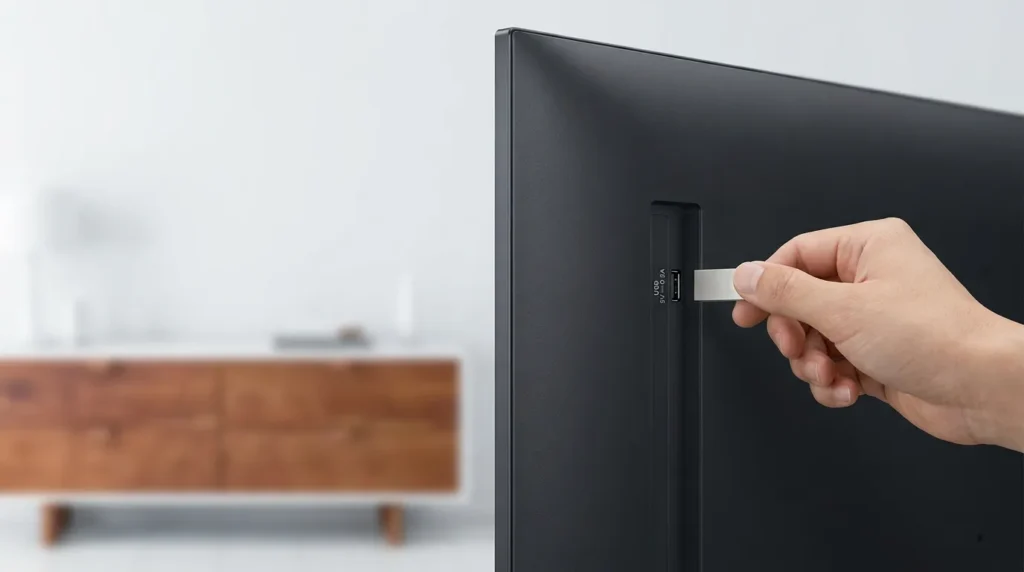
When demo mode is caused by a firmware bug, updating via USB resolves it even when the TV won’t complete normal setup through the interface.
Step 1. Find your TV’s serial number — it’s on the sticker on the back panel.
Step 2. Go to support.vizio.com/s/firmware-search, enter your serial number, and download the correct firmware file for your model.
Step 3. Format a USB drive as FAT32. On Windows: right-click the drive in File Explorer > Format > choose FAT32. On Mac: open Disk Utility > Erase > select MS-DOS (FAT).
Step 4. Copy the downloaded firmware file to the root directory of the USB drive. Do not put it inside any folders — the TV’s firmware reader won’t find it in a subfolder.
Step 5. Insert the USB into your TV’s USB port.
Step 6. Power the TV on. Most Vizio models detect the file automatically and prompt you to install. If no prompt appears, go to Menu > System > Check for Updates.
Step 7. After the update installs and the TV reboots, demo mode should be resolved.
For model-specific notes and what to do if the TV doesn’t detect the USB file, the full Vizio TV firmware update guide covers edge cases in detail.
Special Case — Vizio VIA+ Models
Older Vizio TVs running the VIA+ platform use a different interface. The SmartCast menus don’t apply here.
To exit demo mode on VIA+ TVs:
- Turn the TV off.
- Power it back on.
- When the screen activates, press the Exit key on your remote.
- A prompt appears with two options: Home Use and Store Demo.
- Select Home Use. Done.
For E-series models like the E650i-A2 where the Exit key doesn’t respond, a hidden service menu shortcut exists: press Menu, then 1-1-9, then Enter. This opens a service menu where you can disable Store Demo directly. The full list of access codes for different Vizio series is in the Vizio TV service menu codes reference.
Why Does Demo Mode Keep Coming Back?
You exit demo mode, the TV works for a day, then it’s back. Four causes drive this:
Picture Reset Mode is still on. This setting resets picture preferences on every power cycle and, on some models, reactivates retail picture presets that mimic demo behavior. Disable it at Menu > Preferences > Shop-front Display Setting > Picture Reset Mode > Off at the same time you disable Demo Mode.
A stuck button on the remote is re-triggering it. Set the remote face-down on a surface and power on the TV. If demo mode doesn’t launch, a stuck button on the remote is activating it on startup. Replace the batteries first; if the problem continues, pick up a replacement remote for Vizio TVs — the original Vizio XRT136 works across most SmartCast models.
ECO mode is interfering. Go to Menu > System > Power Mode and turn ECO mode off, then test.
Corrupted firmware. If demo mode returns after every fix attempt, a firmware reinstall via USB (Method 6) is the most reliable permanent fix. It rewrites the system software rather than just adjusting settings that can be overwritten again.
When Nothing Works — Contact Vizio Support
If all six methods fail, the issue is most likely hardware — specifically a failing IR receiver or a defective mainboard.
Signs it has crossed into hardware territory:
- Physical buttons on the TV produce zero response
- No remote input registers even with fresh batteries and confirmed line-of-sight
- The 60-second hard reset (Method 4) produces no change
- The problem started immediately after a power surge or physical impact
Contact Vizio at support.vizio.com. Vizio’s standard warranty is 1 year. If you’re within that window, mainboard replacement is covered at no cost. Outside of warranty, a technician visit is the practical next step — attempting mainboard replacement yourself without electronics repair experience risks compounding the damage.
While you’re working on setup, if the TV exits demo mode but won’t connect to Wi-Fi afterward, fixing Vizio TV not connecting to Wi-Fi covers the most common network issues that follow a reset. And once everything is running, use the TV Setup Checklist Generator to walk through the recommended first-time settings adjustments for picture, audio, and input configuration.