
Your Vizio TV has picture but no sound. You’ve already checked that it’s not muted. This guide covers every fix — in order from quickest to most drastic — so you can get audio back without calling a technician.
Why Your Vizio TV Has No Sound
Before jumping into fixes, a quick diagnosis saves time. Match your symptom below and jump to the relevant fix.
| Symptom | Most Likely Cause | Start Here |
|---|---|---|
| No sound at all, not muted | Audio output set to wrong device | Fix 3 |
| Sound worked, then suddenly stopped | Temporary software glitch | Fix 2 |
| No sound on HDMI input only | Bad HDMI cable or wrong port | Fix 7 |
| No sound on one channel only | SAP (Secondary Audio) is on | Fix 6 |
| Soundbar connected but silent | HDMI ARC or CEC not configured | Fix 8 |
| No sound after a firmware update | Audio settings reset to wrong defaults | Fix 4 |
| Sound comes and goes | Volume Leveling conflict | Fix 5 |
| Nothing works | Factory reset required | Fix 10 |
Fix 1 — Check Mute, Volume, and Input Selection
Start here. It takes 30 seconds and catches the most common cause.
Press the Mute button on your Vizio remote once. If a mute icon appears on screen, the TV is muted — press it again to unmute. Next, press Volume Up several times to confirm the volume is actually changing.
If you’re using a separate soundbar or cable box remote, those devices can have their own mute state. Check both.
Also confirm you’re on the right input. Someone may have accidentally pressed the Input button on the remote, switching from HDMI 1 to an unused port. Press Input and cycle through sources until you find the active one.
One more thing: check the side or back of the TV for a headphone jack. If headphones or a 3.5mm cable are plugged in, the internal speakers shut off automatically on most Vizio models. Unplug anything connected to that jack.
Fix 2 — Power Cycle the TV (Soft Reset)
A power cycle clears temporary memory bugs without deleting any settings. This fixes no-sound issues caused by software glitches more often than people expect.
- Turn off the TV.
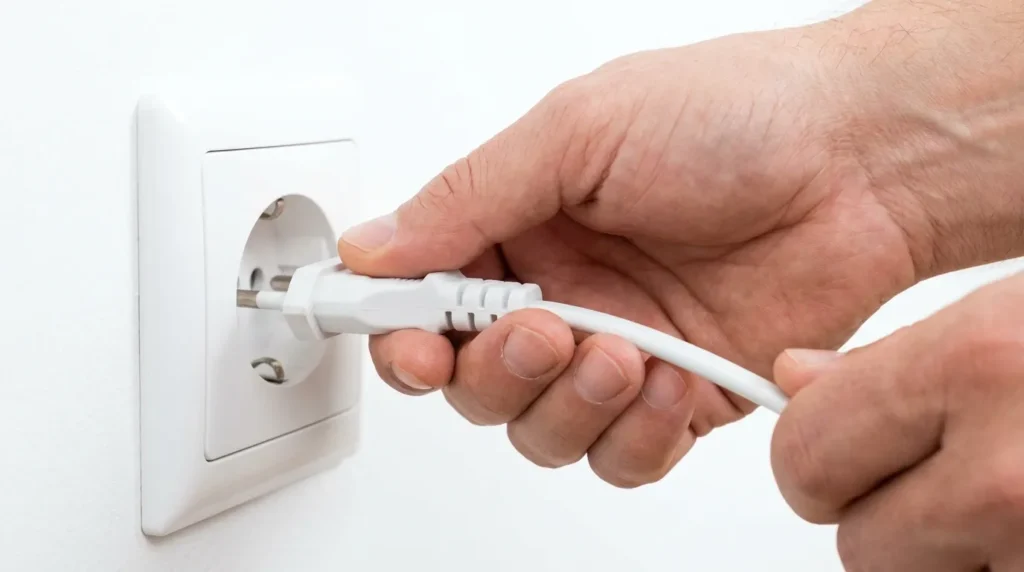
- Unplug the power cord from the wall outlet — not just from the TV, from the wall.
- Wait a full 60 seconds. Don’t skip this. The TV needs time to fully discharge.
- Plug back in and power on.
If 60 seconds doesn’t work, try 3 minutes. Some Vizio audio processor bugs need a longer discharge time to clear.
This also works for intermittent sound issues — if your Vizio TV sound cuts out every few hours, a power cycle often resets the audio processor back to a working state.
If you’re dealing with other Vizio performance issues alongside the sound problem, check out the guide on why your Vizio TV is running slow for more background on software glitches affecting these TVs.
Fix 3 — Set Audio Output to TV Speakers
If your TV’s audio output is set to an external device that isn’t connected, the internal speakers stay silent with no warning.
- Press Menu on your Vizio remote.
- Go to Audio (or System → Audio Settings depending on your model).
- Find Audio Out or Sound Output.
- Set it to TV Speakers.
Save the setting and test. If you hear sound now, the TV’s hardware is working. The previous output device (soundbar, AV receiver) wasn’t receiving signal.
On SmartCast Vizio TVs, press the V button on the remote, navigate to Settings → Audio, and look for the speaker output option there.
Fix 4 — Switch Digital Audio Out to PCM
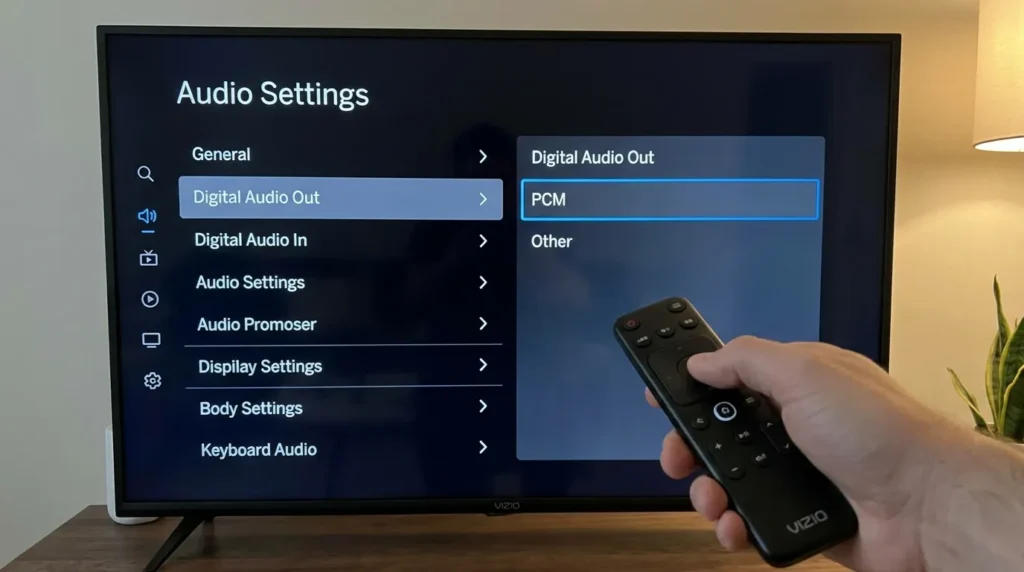
This is the single most effective fix for Vizio TVs that show no sound but aren’t muted. A mismatch between the TV’s digital audio format and what the connected device expects causes complete silence.
PCM (Pulse-Code Modulation) is the most universally compatible audio format. Dolby Digital/Bitstream only works if the connected device specifically supports it. If it doesn’t, you get nothing.
To change it:
- Press Menu on your remote.
- Go to Audio.
- Find Digital Audio Out or Digital Audio Format.
- Change it from Dolby Digital or Auto/Bitstream to PCM.
- Exit the menu and test.
Also while you’re in Audio settings:
- Dolby Atmos → set to Off
- Surround Sound → set to Off (see Fix 5 below)
For soundbars connected via optical cable, PCM is almost always the correct setting. Set your TV to PCM and select Optical as the connection type on the soundbar side.
Fix 5 — Disable Volume Leveling and Surround Sound
Two audio processing features on Vizio TVs — Volume Leveling and Surround Sound — can conflict with external devices or certain broadcast signals, causing audio to drop out entirely or behave erratically.
Volume Leveling is designed to smooth out audio differences between channels and ads. But when used with cable boxes, satellite receivers (Dish, DirecTV), or streaming sticks, it can interfere with the audio signal handoff and cause silence.
- Go to Menu → Audio.
- Find Volume Leveling — turn it Off.
- Find Surround Sound — turn it Off.
- Restart the TV.
This fix is particularly effective if your Vizio TV loses sound specifically when switching channels or returning from commercials — a pattern many users report with Dish and Spectrum cable boxes.
Fix 6 — Turn Off SAP (Secondary Audio Program)
SAP is a broadcast feature that carries an alternate audio track — typically a foreign language translation of the program. If SAP is turned on and the channel isn’t broadcasting an alternate track, you get silence.
Many users accidentally activate SAP by pressing the MTS button on older remotes or by navigating into audio options. It’s a surprisingly common cause of no sound on specific channels while other channels work fine.
To disable SAP:
- Go to Menu → Audio.
- Look for MTS, SAP, or Audio Language.
- Switch from SAP to Stereo (for analog cable) or Digital Audio (for digital cable without a box).
If you use a cable box, check the cable box’s own audio settings too. The fix may need to be applied on the box itself, not the TV.
Fix 7 — Check Your HDMI Cable and Port
HDMI carries both video and audio. It’s possible to get a perfect picture through a damaged HDMI cable while audio fails completely — especially with older or cheap cables.
Steps:
- Unplug the HDMI cable at both ends. Check for bent pins or physical damage.
- Plug it firmly back in — cables that feel secure are sometimes not fully seated.
- Try a different HDMI port on the TV. On most Vizio models, HDMI 1 is the ARC port (for soundbars). HDMI 2 or 3 are standard ports — use these for devices like Roku, gaming consoles, and cable boxes.
- If possible, swap in a different HDMI cable entirely. A certified Premium HDMI cable (look for the label) is worth using if you’ve had multiple cable issues.
One specific scenario worth checking: if you’re connecting a streaming device like a Fire TV Stick or Roku to the HDMI ARC port by accident, the audio can behave unpredictably because ARC expects bidirectional communication. Move the streaming stick to a non-ARC port.
If you’re dealing with a Fire TV Stick and getting a black screen alongside no sound, the Fire TV black screen fix guide covers that exact scenario.
Fix 8 — Set Up HDMI ARC and CEC for Soundbars
If your soundbar is connected via HDMI ARC and producing no sound, the problem is almost always a CEC configuration issue. CEC (Consumer Electronics Control) is the protocol that lets the TV and soundbar communicate — without it, the ARC connection doesn’t work properly.
Requirements for HDMI ARC audio to work:
- HDMI cable must be in the TV’s HDMI 1 (ARC) port — on most Vizio models this is labeled
- CEC must be enabled on the TV
To enable CEC on Vizio:
- Go to Menu → System → CEC.
- Turn CEC On.
- Select Device Discovery to let the TV detect the soundbar.
- In Audio Settings, set the audio output to Optical or HDMI ARC, then set Digital Sound Out to PCM (or Dolby Digital if your soundbar supports it).
If you connect via optical cable instead:
- Connect one end to the TV’s Digital Audio Out (Optical) port.
- Connect the other end to the soundbar’s optical input.
- Set the TV’s digital audio format to PCM.
Want to check if your soundbar is compatible with your Vizio TV before buying? The soundbar compatibility checker tool can help you verify the right connection type.

Fix 9 — Update Vizio Firmware
Firmware bugs can directly cause audio to fail. Vizio has released updates specifically to fix HDMI ARC handshake issues and audio dropout bugs. Running outdated firmware means running known bugs.
To check for updates on SmartCast Vizio TVs:
- Press the V button on your remote.
- Go to System → Check for Updates.
- If an update is available, install it. Don’t turn off the TV during the update.
Alternatively, use the Vizio SmartCast Mobile app on your phone — connect to the same Wi-Fi network as the TV, and the app will notify you of available updates and allow you to trigger them.
If your TV isn’t connecting to update, that’s a separate issue. See the full guide on how to update Vizio TV firmware for manual USB update instructions.
Not sure what firmware version your TV is running? The TV model number decoder tool can help you identify your exact Vizio model and check what firmware line it belongs to.
Fix 10 — Factory Reset (Last Resort)
If none of the above fixes work, the audio issue is caused by a corrupted setting or software state that a targeted fix can’t clear. A factory reset wipes all settings and starts fresh.
Before you reset: note your Wi-Fi password, streaming service logins, and any custom picture or audio settings. Everything gets wiped.
Option A: Reset Audio Settings Only
Try this before doing a full factory reset. It resets only audio-related settings without deleting apps or account data.
- Go to Menu → System → Reset & Admin.
- Look for Reset Audio Settings or Reset Sound Settings to Default.
- Confirm and restart.
Option B: Full Factory Reset
- Go to Menu → System → Reset & Admin.
- Select Reset TV to Factory Defaults.
- Enter your PIN if prompted (default is 0000).
- The TV will restart and go through the initial setup process.
After the reset, set up the TV fresh and test audio before reconnecting any external devices. This isolates whether the issue is the TV itself or a connected device.
If the TV still has no sound after a clean factory reset, the problem is hardware — likely a failed audio processor or main board. At that point, contact Vizio support or consider professional repair.
When to Contact Vizio Support
Contact Vizio if:
- Sound is gone after a factory reset on a clean setup
- The TV is under warranty (most Vizio TVs come with a 1-year limited warranty)
- You hear a buzzing or humming from the speakers instead of silence — that indicates a hardware fault
Vizio support options:
- Chat: vizio.com/support
- SMS: Text 205-301-3729
- Phone: Available during business hours via their support page
If your TV is out of warranty and professional repair costs more than a replacement, it may be worth comparing the repair quote against current prices. The TV lifespan health estimator can help you figure out whether it makes sense to repair or replace.
Frequently Asked Questions
Vizio TV no sound but not muted — what’s happening?
Why does my Vizio TV have sound on some apps but not others?
My Vizio TV lost sound after a firmware update — how do I fix it?
Vizio TV no sound on HDMI — what causes it?
How do I fix Vizio TV no sound after a power outage?
Having picture problems too? The guide on how to fix a dark TV screen covers the most common display issues alongside audio troubleshooting. If your LG TV has a similar sound issue, the LG TV sound not working fix uses a comparable approach.