
You can mirror your iPhone to a Samsung TV using AirPlay 2 — no Apple TV needed, no extra apps, no cables. Both devices need to be on the same Wi-Fi network, and your Samsung TV must be from 2018 or newer. If your TV is older, three other methods still work. This guide covers all of them, plus what to do when things go wrong.
Does Your Samsung TV Support AirPlay 2?
Check this before you do anything else.
AirPlay 2 is built into all Samsung Smart TVs from 2018 onward. Full screen mirroring support starts with 2019 models. Some 2018 models support only media casting, not complete screen mirroring of your entire phone display.
Your iPhone needs to run iOS 12.3 or later. iOS 14 or newer gives the most stable connection.
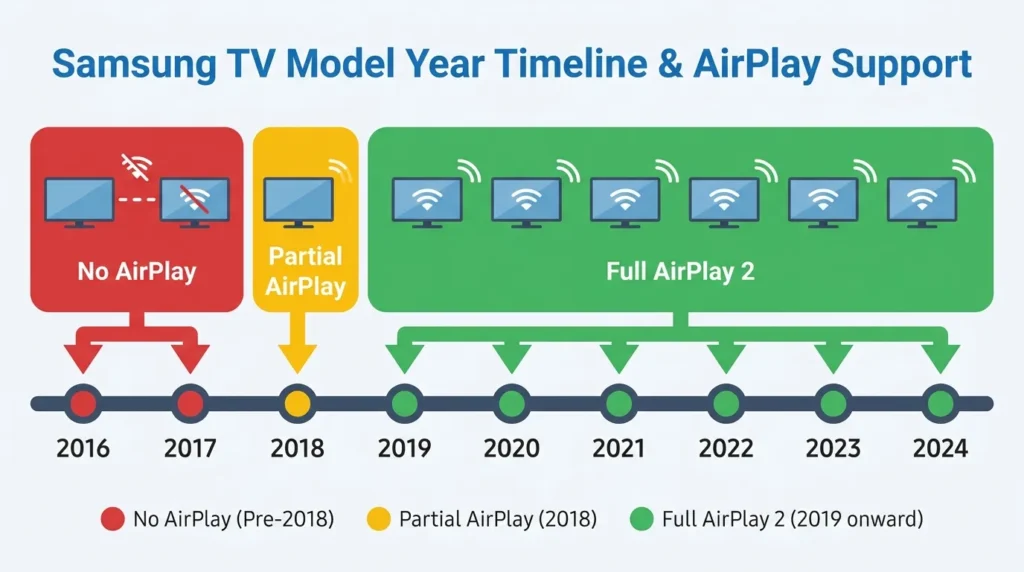
Not sure what year your TV is? The model number on the back of the TV tells you. The middle letter in the model string is the year code:
- E = 2012 / F = 2013 / H = 2014 / J = 2015 / K = 2016 / M = 2017
- N = 2018 / R = 2019 / T = 2020 / A = 2021 / B = 2022 / C = 2023
You can also run the model number through the TV model number decoder to confirm your TV’s year and features instantly.
Wi-Fi band matters too. Both devices must be on the same network and the same band. If your router broadcasts separate 2.4 GHz and 5 GHz networks and your TV is on one while your iPhone is on the other, the connection fails every time. This is one of the most common reasons mirroring doesn’t work.
Method 1 — AirPlay 2 (No App, No Cables)
Best for: Samsung TVs from 2018 and newer.
This is the cleanest method. Nothing to download. Built directly into iOS. Takes about 30 seconds to set up.
Step 1 — Enable AirPlay on Your Samsung TV
AirPlay may already be turned on, but confirm it first.
- Press Home on your Samsung remote.
- Go to Settings.
- Select General — or Connection if you have a 2022 or 2023 model.
- Select Apple AirPlay Settings.
- Make sure AirPlay is toggled On.
If you don’t see an Apple AirPlay Settings option in the menu, your TV doesn’t support AirPlay. Jump to Method 2 or Method 3.
For the complete rundown of which Samsung TV models carry AirPlay 2, see the full AirPlay 2 supported Samsung TV list.
Step 2 — Mirror From Your iPhone
- Confirm your iPhone and TV are on the same Wi-Fi network.
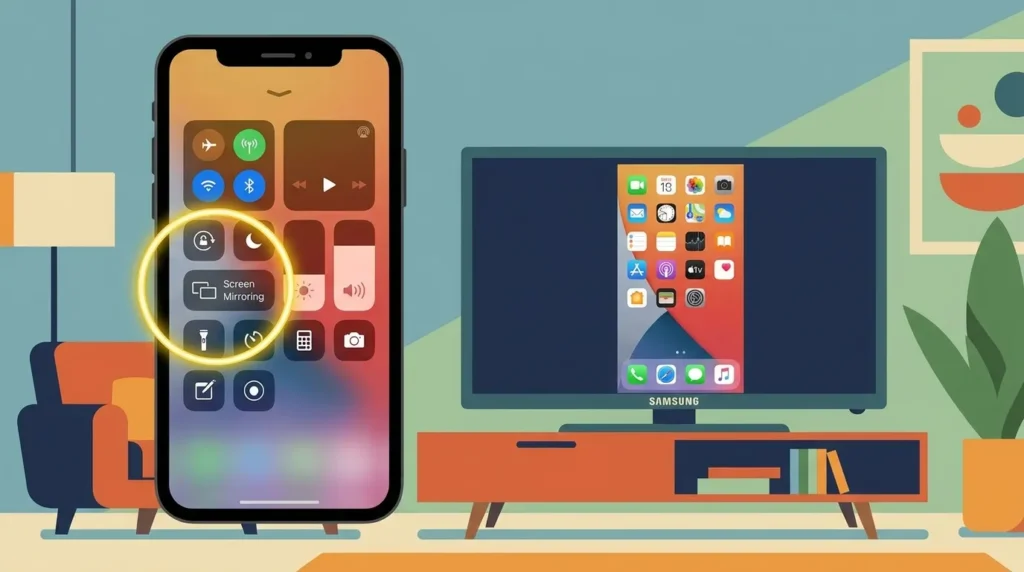
- Swipe down from the top-right corner of your iPhone to open Control Center.
- Tap the Screen Mirroring icon — it looks like two overlapping rectangles.
- Your Samsung TV’s name appears in the list. Tap it.
- A 4-digit AirPlay code may appear on your TV screen. Type it into the prompt on your iPhone, then tap OK.
- Your iPhone screen now shows on the TV.
What is the AirPlay code? Your TV shows this when it’s set to require a passcode for new devices. You only need to enter it once per device unless you manually reset paired devices in the AirPlay settings on your TV.
How to Stop Mirroring
Open Control Center, tap Screen Mirroring, then tap Stop Mirroring. The connection ends immediately.
Method 2 — Samsung SmartThings App
Best for: Samsung TVs from 2016–2017, or when AirPlay keeps failing.
SmartThings is Samsung’s official app for managing its connected devices. It works on iPhone and supports screen mirroring on most Samsung Smart TVs from 2016 onward.
- Download SmartThings from the App Store.
- Open the app and sign in with a Samsung account (free to create).
- Tap the + icon and add your TV. Both devices need to be on the same Wi-Fi.
- Once your TV appears, tap on it.
- Tap More options (three dots) → Mirror Screen (Smart View).
- Tap Start now.
SmartThings also lets you control TV volume, switch inputs, and browse apps from your phone. For a full walkthrough of what it can do, read this guide on how to use the SmartThings app.
Method 3 — Third-Party Mirror App
Best for: Samsung TVs from 2012 onward when AirPlay and SmartThings aren’t available.
Several App Store apps fill the gap for older or incompatible TVs.
DoCast — Clean interface, low latency, supports photos, videos, and DRM-free music. Free to try; screen mirroring requires a paid plan.
MirrorMeister — Works on Samsung TVs from 2012 onward. Free to try; $2.99/year for HD quality and no ads.
Mirror for Samsung TV — Simple and reliable. Expect 1–3 seconds of latency. Poor for gaming but fine for video, photos, and presentations.
All three follow the same setup: download the app → connect your iPhone and TV to the same Wi-Fi → open the app → select your TV → tap Start Mirroring.
One thing to know: the 1–3 second delay is normal with third-party apps. Gaming won’t work well. For video content and photos, the delay is barely noticeable.
Method 4 — HDMI Cable (Most Reliable)
Best for: TVs without smart features, gaming, or when your Wi-Fi is unstable.
A wired connection removes all wireless variables. No dropped sessions, no latency, no compatibility questions. You just need the right adapter for your iPhone model.
What you need:
- iPhone 14 or older → Lightning to HDMI adapter
- iPhone 15 or newer → USB-C to HDMI adapter
- An HDMI cable
Steps:
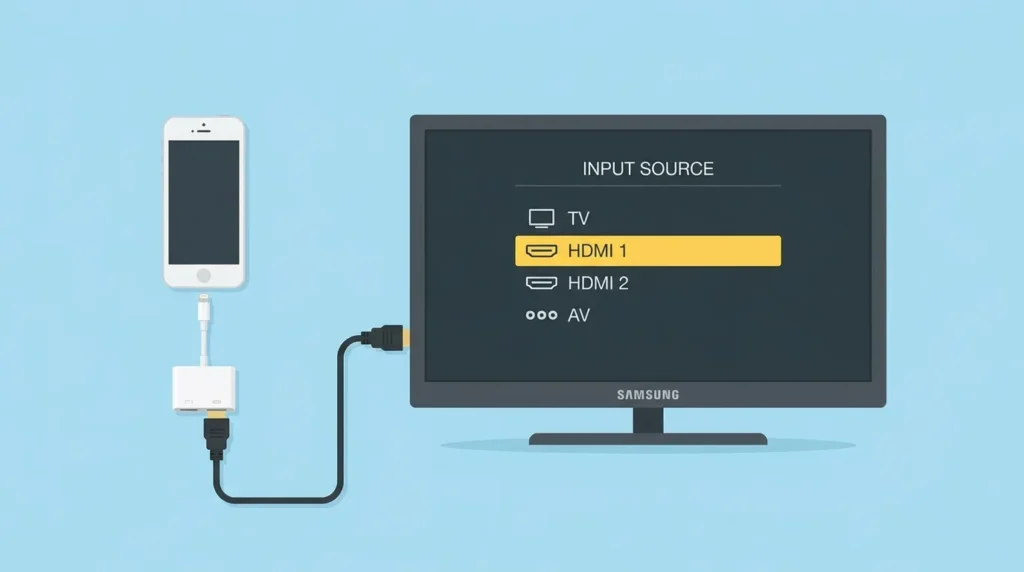
- Plug the adapter into your iPhone’s charging port.
- Connect one end of the HDMI cable to the adapter. Plug the other end into an HDMI port on your Samsung TV.
- On your TV remote, switch the input source to the port you used — HDMI 1, HDMI 2, or HDMI 3.
If you’re unsure which HDMI input to choose, the TV input and HDMI port selector tool can walk you through it.
- Your iPhone screen appears on the TV automatically.
Adapter power note: Some Lightning to HDMI adapters need external power to function. If the display doesn’t show up, plug a USB charger into the adapter’s charging port and try again.
What Won’t Mirror — DRM Apps
This surprises a lot of people.
Netflix, Disney+, and Apple TV+ block screen mirroring. These apps use DRM (Digital Rights Management) to prevent their streams from being captured or recorded. When you try to mirror them, you get a black screen on the TV — even though your iPhone’s mirroring is technically working. This applies to every method, including HDMI.
The fix: open Netflix, Disney+, or Apple TV+ directly on your Samsung TV. All three are available as native apps on Samsung Smart TVs. You get full quality playback without any workaround.
Apps that mirror without restrictions include YouTube, Safari, Photos, most games, and standard video files stored on your phone.
Screen Mirroring Not Working? Fix It Here
Try these steps in order.
- Confirm both devices are on the same Wi-Fi — same band. This causes the majority of failed connections. If your router has separate 2.4 GHz and 5 GHz networks listed, both devices need to be on the same one.
- AirPlay is turned off on your TV. Go to Settings → General (or Connection) → Apple AirPlay Settings → toggle AirPlay on.
- A VPN is running on your iPhone. A VPN makes your iPhone appear to be on a different network, breaking AirPlay. Turn it off before mirroring.
- Restart both devices. Unplug your Samsung TV from the wall for 30 seconds, then restart your iPhone. Try connecting again fresh.
- Update your iOS and Samsung TV firmware. Outdated software on either device breaks AirPlay compatibility. On iPhone: Settings → General → Software Update. For your TV, follow this Samsung TV firmware update guide.
- Disable Eco Mode and Sleep Timer on your TV. These cut the TV’s network connection after inactivity, dropping your mirror session. Find them under Settings → General → Eco Solution.
- Turn off Auto-Lock on your iPhone while mirroring. If your iPhone screen goes dark, the session drops. Go to Settings → Display & Brightness → Auto-Lock → Never. Set it back afterward.
If your TV is showing a stretched or cropped image after connecting, that’s a separate display setting issue. Check this guide on fixing Samsung TV not showing full screen to sort that out first.
FAQ
Can I mirror my iPhone to any Samsung TV?
No. AirPlay 2 requires a Samsung Smart TV from 2018 or newer. For 2016–2017 models, use SmartThings. For 2012–2015 models, a third-party app or HDMI cable are your options. Any TV with an HDMI port works with the wired method.
Do I need Apple TV to mirror my iPhone to a Samsung TV?
No. Samsung TVs from 2018 onward have AirPlay 2 built in. You mirror directly from your iPhone’s Control Center. No Apple TV, no extra devices, no cost.
Why does Netflix show a black screen when I mirror?
Netflix uses DRM to block screen capture on all mirroring methods. Open Netflix directly on your Samsung TV instead.
Is AirPlay mirroring the same as casting?
They’re different. Screen mirroring copies your entire iPhone display to the TV in real time — every app, notification, and action shows on screen. Casting sends only specific content (a video, a song) to the TV while your phone stays independent. AirPlay can do both depending on how you start it.
Does screen mirroring use a lot of Wi-Fi?
AirPlay mirroring uses roughly 5–20 Mbps depending on screen activity. Browsing or photos are on the low end. High-motion video pushes toward 20 Mbps. On any standard home connection, this won’t cause issues.
My Samsung TV won’t connect to Wi-Fi at all.
Mirroring can’t work if your TV isn’t online. Solve the network issue first with this guide to fixing Samsung TV Wi-Fi connection problems.